
Multimedia & graphics Windows
Peace Equalizer
Adjust Windows audio with Peace Equalizer, a free interface for Equalizer APO with per-channel EQ, saved presets and headphone profiles. Requires Equalizer APO.
Version 1.6.9.11 · Direct publisher file
Link checked · Download guidance
What is Peace Equalizer?
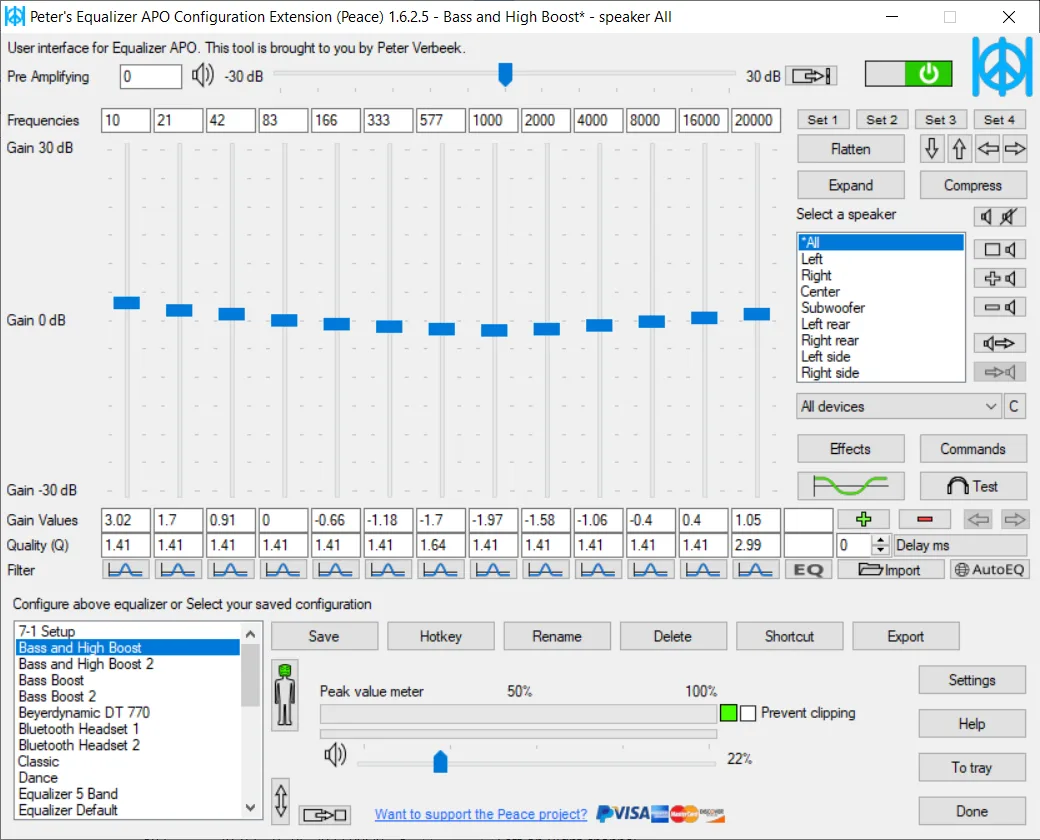
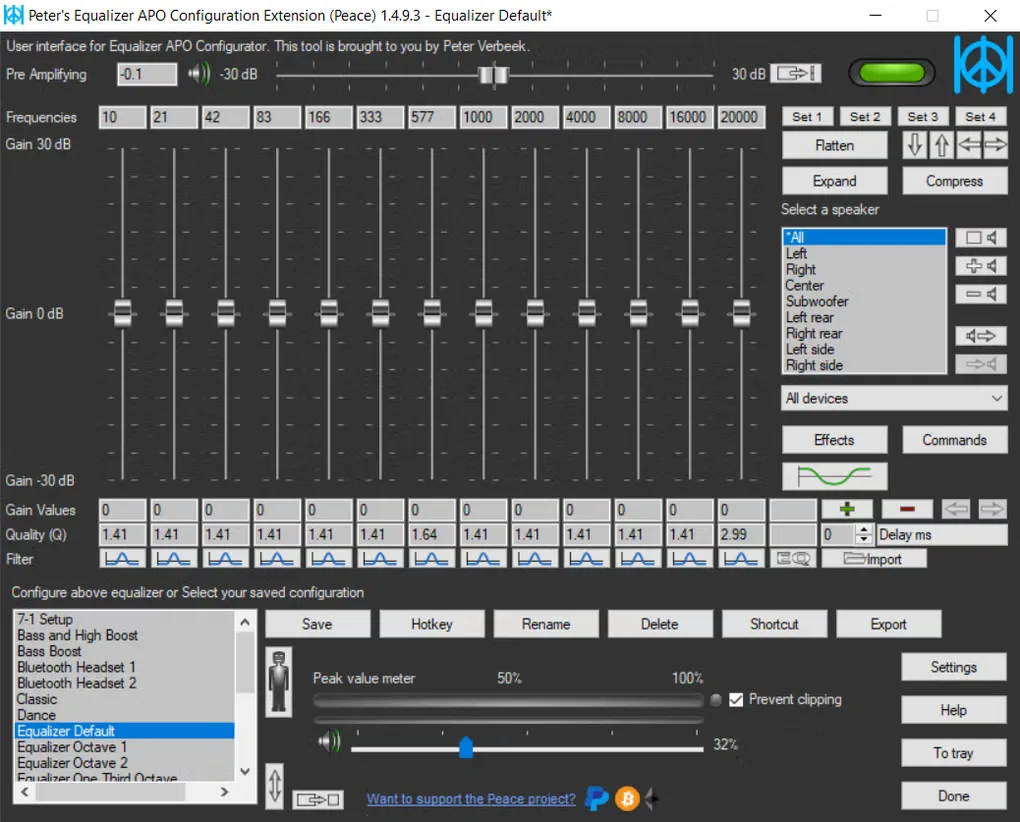
Peace Equalizer gives Equalizer APO a graphical control panel for shaping Windows audio. Adjust frequency, gain and filter quality for individual channels, save separate configurations for speakers or headphones, and switch between them from the system tray or a hotkey. The publisher lists Windows 7 through Windows 11.
Its AutoEQ interface helps find equalizations for specific headphones. An effects panel adds controls such as crossfeed, bass, treble, channel routing and delay, while a graph shows the filters for each speaker. Presets can also activate when a program starts or an audio device is selected.
Peace is the interface, not a replacement for the Equalizer APO processing engine. Install Equalizer APO first; the publisher notes that it may need reinstalling after a Windows update. The linked PeaceSetup.exe is the publisher's setup tool. The screenshots illustrate older interface versions, not a verified installation of version 1.6.9.11.
What it offers
- Adjust per-channel EQ frequency, gain and filter quality with peak, shelf, pass, notch and other filters.
- Save EQ configurations and activate them with a click, hotkey, tray menu or desktop shortcut.
- Find headphone equalizations through the AutoEQ interface.
- Use crossfeed, bass, treble, delay and channel-routing effects alongside per-speaker filter graphs.
- Activate configurations automatically on program start or audio-device selection.
Good to know
- Equalizer APO must be installed first; Peace is its control interface, not a standalone audio-processing engine.
- The publisher warns that Equalizer APO may need reinstalling after a Windows update.
Product images
Sources
References used for this listing. Retrieval dates do not indicate hands-on testing.
More in multimedia & graphics
View category ↗
1by1 2.17
Play music directly from folders with 1by1, a free Windows audio player with resume, gapless playback and file tools. Formats beyond MP3 need additional decoders.
3DVista Virtual Tour Pro
Build interactive 360° virtual tours from panoramas, videos and 3D models with 3DVista Virtual Tour Pro for Windows. Commercial software with a 30-day trial.

4DDiG Video Repair
Repair corrupted or unplayable videos in batches with the Video Repair tool in 4DDiG File Repair for Windows. A free trial is available; advanced features require a paid license.