

Utilities Windows
AdvancedRun for Windows
Launch Windows programs with a chosen user account, priority, compatibility mode and environment variables using NirSoft's portable AdvancedRun utility.
- Operating system
- Windows XP through Windows 11, according to NirSoft
- Architecture
- x64; separate 32-bit package available
- Download package
- ZIP archive; no installation process required
Publisher-stated compatibility, not an installation test. Some permission features are unavailable on Windows XP; remote execution requires full administrator access.
Link checked · Download guidance
What is AdvancedRun?
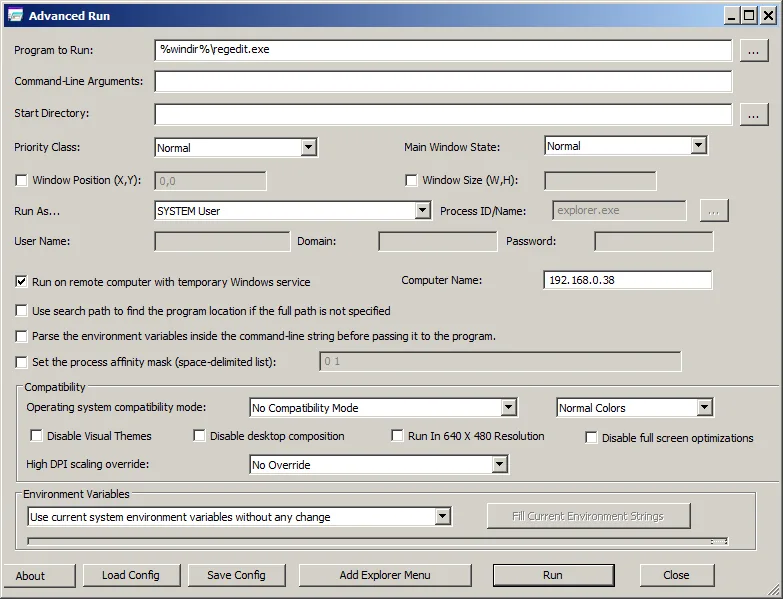
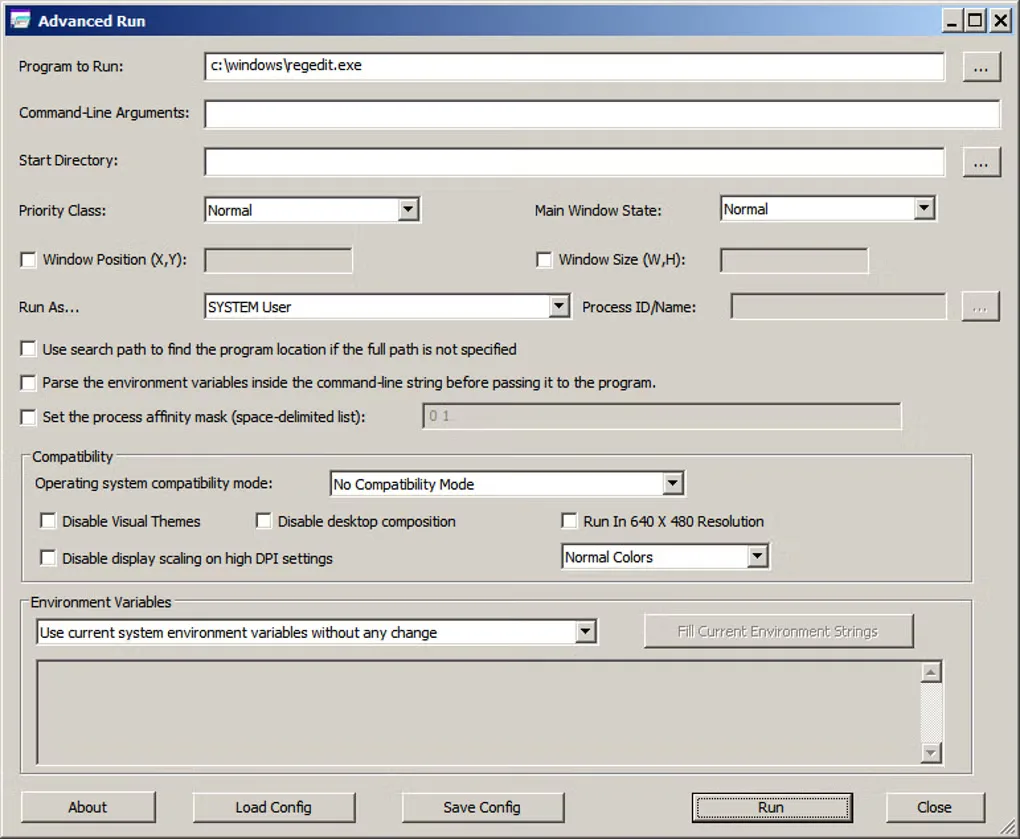
AdvancedRun lets you choose how a Windows program starts instead of changing its settings system-wide. Select an executable, supply command-line arguments and a start directory, then choose its priority, window state, user account and compatibility options. It is useful when the same program needs different launch settings for different tasks.
You can merge custom environment variables with the system variables or supply a separate set just for the launched process. Save the settings in a configuration file to reuse them from the interface or command line. AdvancedRun also supports Command Prompt commands, PowerShell commands and scripts, and opening files or folders through their default application.
The linked download is NirSoft's 64-bit ZIP package; a separate 32-bit package is available on the publisher page. The utility does not require an installation process. Remote execution uses a temporary Windows service and requires full administrator access to the remote computer, including its admin share. Window state, position and size settings only affect programs that support those options.
What it offers
- Set a program's command-line arguments, start directory, priority and CPU affinity.
- Choose supported user and permission contexts, including administrator, SYSTEM and TrustedInstaller.
- Apply compatibility settings and custom environment variables to the launched program without changing them system-wide.
- Save launch settings in configuration files and reuse them from the command line.
- Launch executables, Command Prompt commands, PowerShell commands or scripts, and files through their default application.
Good to know
- Remote execution requires full administrator access to the target computer, including its admin share.
- Window state, position and size controls only work with programs that support them.
- Some features, including running as SYSTEM or as the user of a selected process, are not supported on Windows XP.
Product images
More in utilities
View category ↗
1.1.1.1 with WARP 2026.8.2115.0
Encrypt traffic from your Mac to Cloudflare’s network with WARP, or use DNS-only mode for encrypted DNS queries to the 1.1.1.1 resolver.
1.1.1.1 with WARP 2026.8.2115.0
Encrypt traffic between your Windows PC and Cloudflare, or use encrypted DNS only, with the free 1.1.1.1 with WARP app.

3uTools 9.12.005
Manage iPhone and iPad photos, music, apps and backups from Windows with 3uTools, a free utility that also includes device checks and firmware flashing tools.