
Utilities Windows
Autologon
Configure automatic Windows sign-in with Microsoft Sysinternals Autologon, with controls to enable, disable or skip a single automatic logon.
Version 3.10 · Direct publisher file
Link checked · Download guidance
What is Autologon?
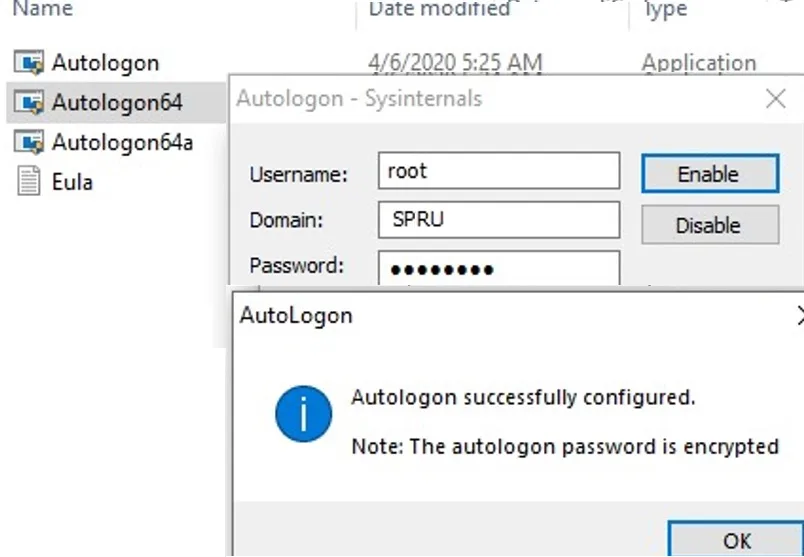
Autologon configures Windows’ built-in automatic logon mechanism. Enter the username, domain and password in its dialog and choose Enable; at the next system start, Windows attempts to sign in that account at the console. The download linked here is the ZIP package hosted by Microsoft Sysinternals.
To undo the configuration, open Autologon and choose Disable. Holding Shift before Windows performs automatic logon skips it for that logon only. The utility also accepts a username, domain and password as command-line arguments.
Automatic sign-in trades a manual sign-in step for convenience; encrypted storage is not protection against an administrator. Microsoft warns that administrators can retrieve and decrypt the password stored as an LSA secret. Autologon does not check whether credentials are correct or whether the account is allowed to log on, and Exchange ActiveSync password restrictions can prevent Windows from using the configuration.
What it offers
- Configure the username, domain and password used by Windows for automatic console logon.
- Enable or disable automatic logon from the application dialog.
- Hold Shift before automatic logon to skip it for a single logon.
- Pass the username, domain and password as command-line arguments.
Good to know
- An administrator can retrieve and decrypt the password stored in the Registry as an LSA secret.
- Autologon does not validate the submitted credentials or the account’s permission to log on to the computer.
- Windows will not process the configuration when Exchange ActiveSync password restrictions are in place.
Product images
Sources
References used for this listing. Retrieval dates do not indicate hands-on testing.
More in utilities
View category ↗
1.1.1.1 with WARP 2026.8.2115.0
Encrypt traffic from your Mac to Cloudflare’s network with WARP, or use DNS-only mode for encrypted DNS queries to the 1.1.1.1 resolver.
1.1.1.1 with WARP 2026.8.2115.0
Encrypt traffic between your Windows PC and Cloudflare, or use encrypted DNS only, with the free 1.1.1.1 with WARP app.

3uTools 9.12.005
Manage iPhone and iPad photos, music, apps and backups from Windows with 3uTools, a free utility that also includes device checks and firmware flashing tools.