
Utilities Windows
Custom Resolution Utility (CRU)
Edit monitor resolutions, refresh-rate timings and FreeSync ranges with CRU, a free Windows EDID editor that saves software overrides rather than changing monitor hardware.
- Operating system
- Windows Vista or later, with a supported graphics driver
- Architecture
- Not specified in the cited publisher documentation
- Download package
- ZIP archive (cru-1.5.3.zip)
AMD/ATI, NVIDIA and supported Intel drivers; not Microsoft Basic Display Adapter. GPU, driver and monitor limitations apply.
Link checked · Download guidance
What is Custom Resolution Utility (CRU)?
Custom Resolution Utility (CRU) lets experienced Windows users edit the resolutions and capabilities reported by a monitor. It can add custom monitor resolutions, remove unwanted modes and adjust FreeSync or VRR range information. Changes are stored as software EDID overrides in the Windows registry; CRU does not rewrite the monitor hardware.
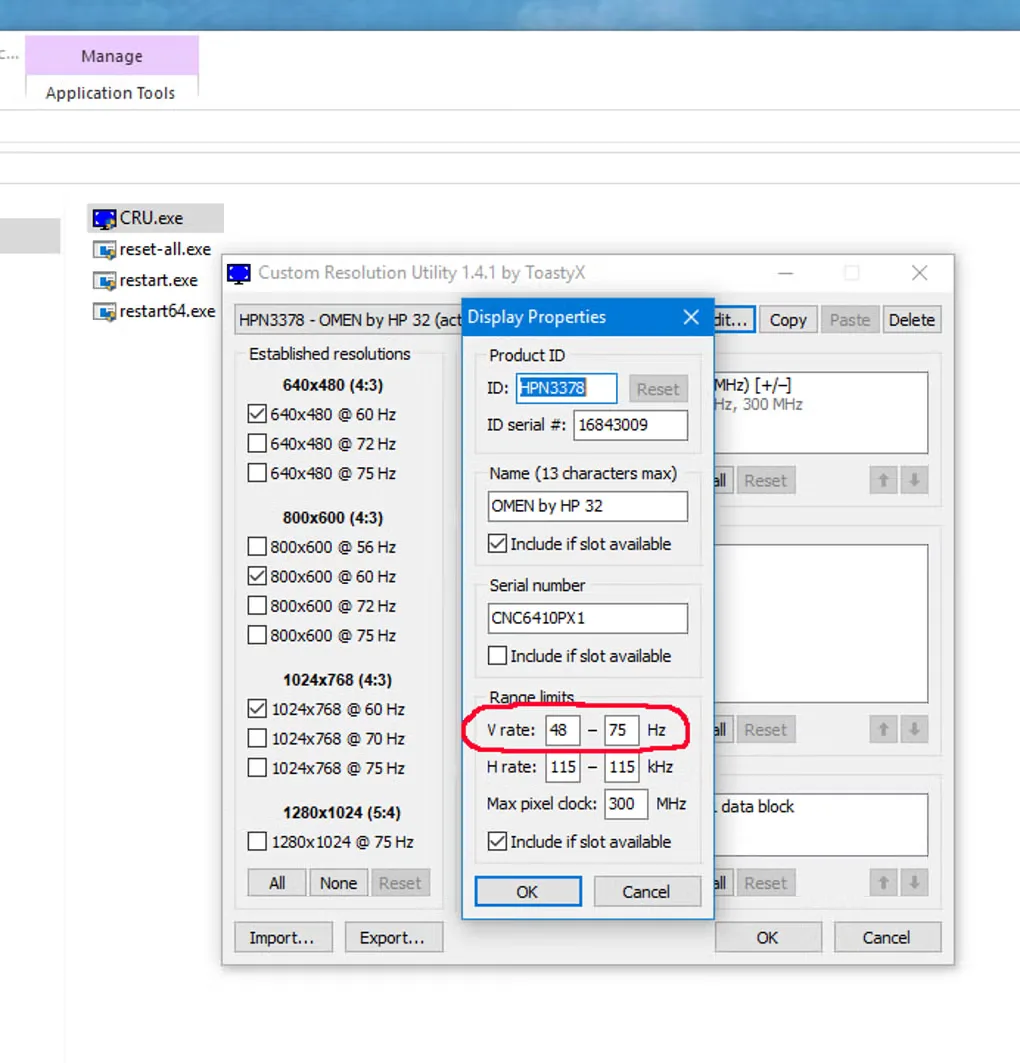
The editor exposes detailed and standard resolutions, timing parameters and extension blocks. EDID import and export let you reuse or inspect configurations. After saving an override, follow the publisher's instructions to restart the graphics driver and select the mode in Windows display settings. The linked publisher package is version 1.5.3; the gallery image illustrates the older 1.4.1 interface, not a verified capture of that package.
This is not a universal resolution unlocker. CRU adds monitor modes, not GPU-scaled resolutions, and higher resolutions only work when the monitor can handle them. Driver support matters: the publisher supports AMD/ATI, NVIDIA and specified Intel drivers, but not Microsoft Basic Display Adapter. Its documentation also flags NVIDIA DSC and multiple-display problems and Windows 11 displays with invalid EDID.
Read the publisher's recovery instructions before changing display timings: an unusable mode can leave the screen unavailable. The publisher documents removing overrides with reset-all.exe and rebooting, including recovery through safe mode when necessary. No installation, hardware compatibility test or refresh-rate gain is claimed here.
What it offers
- Add or remove monitor resolutions through registry-based EDID overrides.
- Edit detailed resolution timings and standard resolution entries.
- Adjust FreeSync and VRR range information in supported EDID fields.
- Import and export EDID configurations, including raw binary, text and monitor-driver formats.
- Edit CTA-861 and DisplayID extension blocks for additional display capabilities.
Good to know
- Requires Windows Vista or later and a supported graphics driver; Microsoft Basic Display Adapter does not support EDID overrides. Intel support depends on the GPU and driver.
- CRU does not add GPU-scaled resolutions or make a monitor accept modes beyond its capabilities.
- The publisher reports NVIDIA DSC cases where overrides are ignored and a multiple-display driver bug that can hang Windows during boot.
- Windows 11 ignores overrides for displays without a valid EDID.
- Incorrect settings can leave the display unavailable; prepare the publisher's safe-mode and override-reset recovery procedure before making changes.
Product images
Sources
References used for this listing. Retrieval dates do not indicate hands-on testing.
More in utilities
View category ↗
1.1.1.1 with WARP 2026.8.2115.0
Encrypt traffic from your Mac to Cloudflare’s network with WARP, or use DNS-only mode for encrypted DNS queries to the 1.1.1.1 resolver.
1.1.1.1 with WARP 2026.8.2115.0
Encrypt traffic between your Windows PC and Cloudflare, or use encrypted DNS only, with the free 1.1.1.1 with WARP app.

3uTools 9.12.005
Manage iPhone and iPad photos, music, apps and backups from Windows with 3uTools, a free utility that also includes device checks and firmware flashing tools.