

Development Windows
Cyberduck for Windows
Browse remote servers and cloud storage with Cyberduck for Windows, a free, open-source file-transfer client for FTP, SFTP, WebDAV and services such as Amazon S3.
- Operating system
- Windows 10 (64-bit) or later
- Architecture
- 64-bit Windows; CPU instruction set not specified on download page
- Download package
- EXE installer
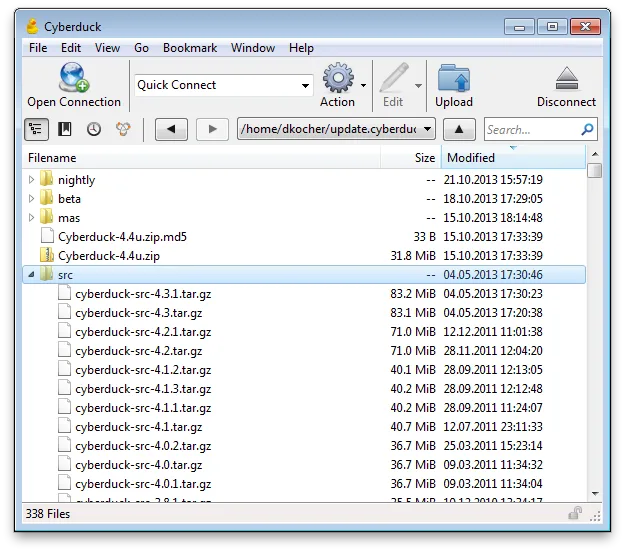
Publisher package: Cyberduck-Installer-9.5.4.45528.exe. The screenshot shows an older Windows interface.
Link checked · Download guidance
What is Cyberduck?
Cyberduck brings remote files into a desktop browser so you can upload website content, retrieve documents or organize files across server and cloud accounts. It connects through FTP, SFTP and WebDAV, and supports services including Amazon S3, Microsoft OneDrive, Google Drive and Dropbox. Bookmarks and connection history help you return to frequently used locations.
Transfers support drag and drop, resuming interrupted uploads and downloads, and directory synchronization with a preview of affected files. External-editor integration lets you open a remote file in your preferred application. Cryptomator-compatible vaults add client-side encryption for file contents and names.
The free publisher download displays a donation prompt; a contributor registration key disables it. Mounting remote storage as a disk in Windows File Explorer is offered through the separate Mountain Duck application. The linked EXE is version 9.5.4 for Windows 10 (64-bit) or later. The publisher screenshot below illustrates an older Windows interface, not the appearance of version 9.5.4.
What it offers
- Connect to FTP, SFTP and WebDAV servers, plus cloud services including Amazon S3, OneDrive, Google Drive and Dropbox.
- Upload and download by drag and drop, resume interrupted transfers and transfer entire directories.
- Preview changes before synchronizing local and remote directories.
- Organize connection bookmarks and reopen servers through connection history.
- Edit remote files with an external editor and use Cryptomator-compatible encrypted vaults.
Good to know
- The free publisher download includes a donation prompt; a contributor registration key disables it.
- Mounting remote storage as a disk in Windows File Explorer is offered by the separate Mountain Duck application.
Product images
Sources
References used for this listing. Retrieval dates do not indicate hands-on testing.
- Cyberduck — Download ↗Retrieved
- Cyberduck — server and cloud storage browser ↗Retrieved
- Cyberduck — License ↗Retrieved
- Cyberduck - Download — normal browser observation ↗Retrieved
More in development
View category ↗
010 Editor 17.0
Inspect and edit binary files on Mac with 010 Editor, a paid text and hex editor with Binary Templates, file comparison and a 30-day trial.
010 Editor 17.0
Inspect and edit binary files with 010 Editor for Windows, a text and hex editor with Binary Templates, file comparison and scripting. Includes a 30-day trial.
10x Editor
Edit and navigate C++ projects on Windows with a built-in parser, workspace search and Visual Studio project support. A paid license is required after the 30-day trial.