

Utilities Windows
Desktop Live Wallpapers for Windows
Play personal videos or animated collections as Windows desktop backgrounds, with multi-monitor support and a separate Pro tier for unrestricted video-file use.
This opens the official acquisition page, not a verified installer file.
Publisher page reviewed · Download guidance
What is Desktop Live Wallpapers?
Desktop Live Wallpapers turns video into a moving Windows desktop background. Its Microsoft Store listing describes two starting points: open a folder containing your own videos, or choose from animated wallpaper collections. Multiple monitors and different display DPIs are supported, so it is not limited to a single-screen desktop.
The important purchasing distinction is video-file access. The Store description reserves setting any video file without limitations for ProVersion. A free installation is therefore not evidence that every format or personal clip will work in the base edition. The publisher explicitly names Windows 10 and Windows 11, but the accessible listing does not establish a detailed codec matrix or a numeric hardware requirement.
What it offers
- Use personal video files as animated desktop wallpapers.
- Choose from publisher-described collections of animated wallpapers.
- Work with multiple monitors and various display DPIs.
- Stop live playback when the desktop is not visible, as described by the publisher.
- Use copied video files from iPhone or Android live images through a local folder.
Good to know
- Unrestricted use of any video file is described as a ProVersion feature; the free edition should not be treated as having the same file support.
- The accessible official description does not specify a complete free-tier codec list, architecture list or minimum hardware configuration.
- The publisher’s resource-saving description is not a measured performance or battery-life result.
A video background, not a whole-desktop theme
Desktop Live Wallpapers is for the background layer of a Windows desktop. Its official description concerns animated wallpapers and personal video files, not replacement Windows controls or a new taskbar. That makes the core decision straightforward: choose it for moving scenery or a personal clip behind your applications, rather than for changing the visual style of Windows itself.
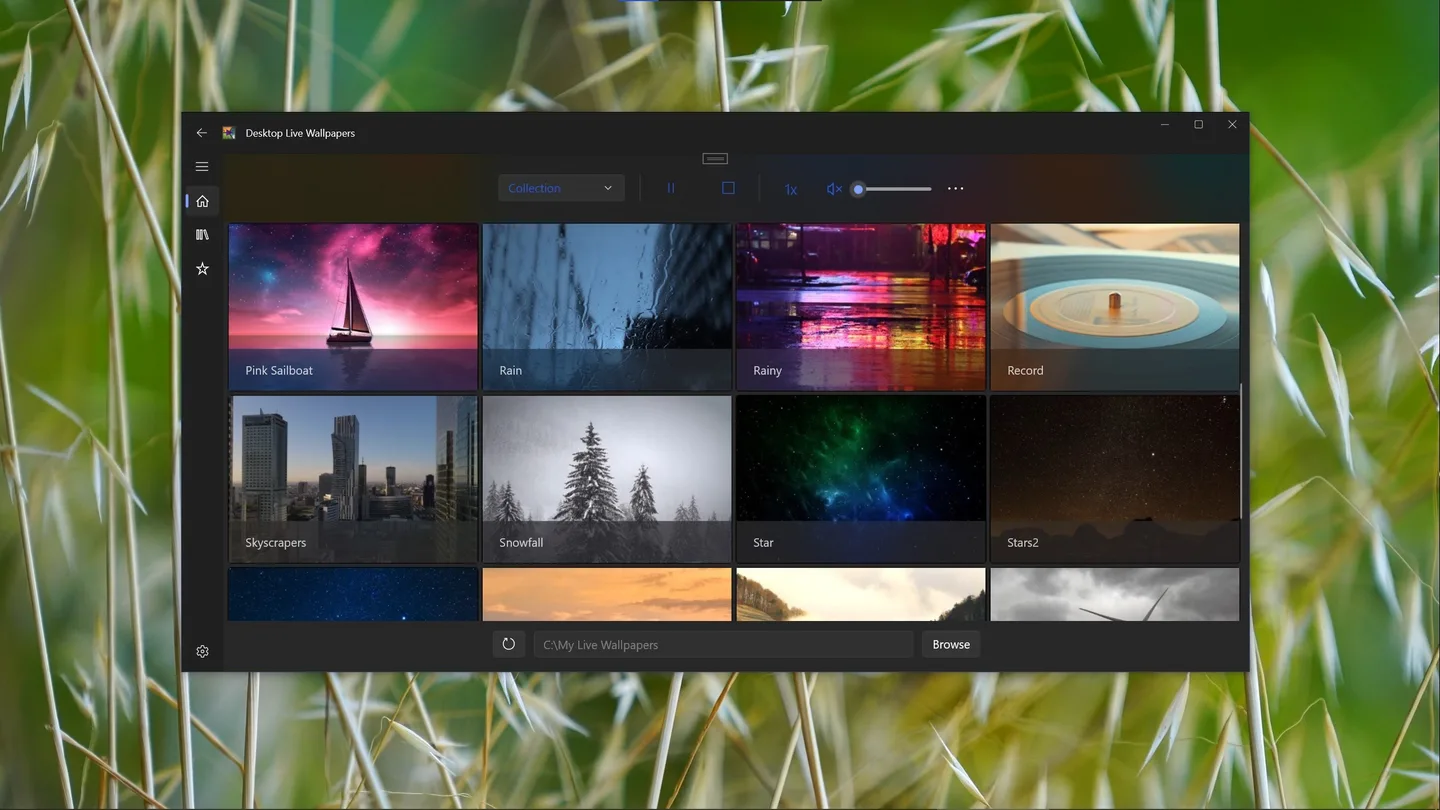
The retained Store screenshot shows the application’s collection grid, playback controls and a Browse control for a local folder. It is a picture of the product interface, not proof that an example wallpaper is included in every region or edition.
Check the product identity before following a wallpaper tutorial: this guide covers Desktop Live Wallpapers by Chan Software Solutions, Microsoft Store ID 9nz370xbfqmg. Instructions for a similarly named Store app are not evidence of this app’s formats, upgrade terms or monitor controls.
Using personal videos and phone footage
The publisher’s described workflow is folder-based: put personal video files on the computer, open the application and browse to that folder. For footage originating on an iPhone or Android device, the listing likewise says to copy the video files to the PC first. It does not describe signing into a phone cloud service or remotely streaming the phone’s live-photo library.
Start by distinguishing the file you have from the wallpaper effect you want. A phone live image must provide a video file for this documented path; the listing is not a promise to import every phone photo container directly. Keep the source clip available while deciding whether the base edition supports it.
What the free listing does—and does not—promise
The Microsoft Store page labels the app as free and its embedded offer has a zero price. The same page separately says that ProVersion can set any video file as a desktop background without limitations. Those statements belong together: free access to the app is not the same thing as unrestricted video-file support.
The accessible original does not give a complete codec-by-codec list for the base edition. Do not purchase an upgrade solely on an assumed extension list from another wallpaper product. Check the current in-app offer and your actual file requirements before committing to Pro; no price for that upgrade is asserted here.
Multiple monitors and hidden-desktop playback
The official description explicitly mentions multiple monitors and various DPIs. This is relevant to a laptop connected to an external display or a desk with screens at different scaling settings. It does not establish that each display can use every combination of separate clips, span modes or refresh rates; those details were not present in the retained text.
The publisher also says live wallpapers can stop when the desktop is not visible. Treat this as a playback behavior to consider when configuring the app, not a guarantee of zero background cost. This page contains no benchmark, game frame-rate comparison or battery test.
Windows support and the official installation route
The publisher description explicitly states Windows 10 and Windows 11 compatibility. The structured Store data also carries a Windows 10 operating-system field; neither source provides a detailed build-by-build support policy. Architecture and minimum hardware are therefore left unspecified rather than inferred from the screenshots.
Use the linked Microsoft Store product page and confirm the title and publisher, Chan Software Solutions, before choosing the Store’s installation action. The link is an official listing, not a verified standalone installer. Store eligibility, regional availability and purchase terms remain those shown by Microsoft on your device.
The version and build strings in the Store website’s HTML describe the Store website, not a Desktop Live Wallpapers release. They do not establish an app version or a minimum Windows build. If Store compatibility blocks installation on your PC, the Windows 10/11 description alone does not explain that device-specific restriction.
Stopping the effect and removing the app
The retained interface image includes pause and stop controls above the collection grid. These identify the playback controls visible in that screenshot; they are not a tested recovery procedure or a guarantee about all versions.
For complete removal, Microsoft’s Windows guidance is to find the app under Start > All apps, right-click it and choose Uninstall. Microsoft also documents removal through Settings and, for applicable desktop programs, Control Panel. Removing the application is different from deleting your original video files: retain footage you want to use elsewhere, and review any removal prompt rather than assuming it will manage your personal media.
Product images
Sources
References used for this listing. Retrieval dates do not indicate hands-on testing.
More in utilities
View category ↗
1.1.1.1 with WARP 2026.8.2115.0
Encrypt traffic from your Mac to Cloudflare’s network with WARP, or use DNS-only mode for encrypted DNS queries to the 1.1.1.1 resolver.
1.1.1.1 with WARP 2026.8.2115.0
Encrypt traffic between your Windows PC and Cloudflare, or use encrypted DNS only, with the free 1.1.1.1 with WARP app.

3uTools 9.12.005
Manage iPhone and iPad photos, music, apps and backups from Windows with 3uTools, a free utility that also includes device checks and firmware flashing tools.