
Utilities Windows
Disk2vhd
Convert physical Windows disks into virtual hard disks with Disk2vhd, a Sysinternals utility that captures selected volumes while the system is running.
- Operating system
- Publisher lists Windows Vista, Windows Server 2008 and higher
- Architecture
- x64 support explicitly documented; other architectures not confirmed here
- Download package
- ZIP archive from Microsoft Sysinternals
The publisher document is dated October 12, 2021. Its broad compatibility statement is not independent testing of current Windows builds or ARM64 support. Download points to the official archive, not a VM image.
Link checked · Download guidance
What is Disk2vhd?
Disk2vhd creates virtual hard disk images from physical disks for use with virtual machines. It suits capturing a Windows system for a physical-to-virtual migration when you need to choose which volumes to include rather than copy every volume's contents. Microsoft's documentation describes using the resulting VHDs with Hyper-V or Microsoft Virtual PC. Creating the image is separate from configuring the destination virtual machine.
The interface lists the available volumes. Select the volumes to capture and choose an output file; Disk2vhd uses Windows Volume Snapshot capability to capture a consistent point-in-time view of the selected volumes on a running system. It creates one VHD for each physical disk containing selected volumes, preserving that disk's partition information but copying data only from the volumes you selected. Microsoft recommends a different physical disk for the output for better performance, although a local volume being captured can also hold the output.
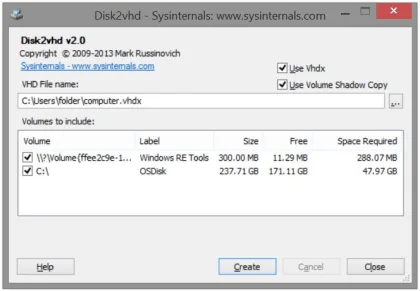
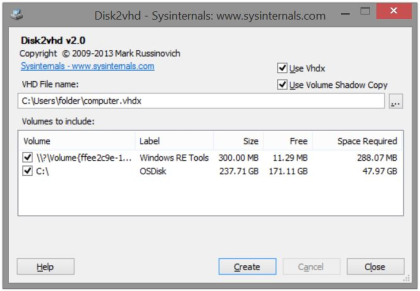
Command-line options support scripted captures by drive letter, or an asterisk for all volumes. The publisher's included screenshot shows the older Disk2vhd v2.0 interface with a destination field, volume checkboxes, Use Vhdx and Use Volume Shadow Copy options. It illustrates the workflow, not a newly tested capture of the currently listed v2.02.
BitLocker-enabled volumes cannot be converted: Microsoft says they must be fully decrypted first. If you intend to boot the image in a VM, do not attach it to the source system beforehand; Windows can change its disk signature and leave the copied installation unable to locate its boot disk. Guest drivers and Windows licensing also need attention. The documentation's 127 GB virtual-disk limit belongs to Microsoft Virtual PC, not a blanket Disk2vhd limit.
What it offers
- Capture selected volumes from a running Windows system using Volume Snapshot capability.
- Create one virtual hard disk per physical disk containing selected volumes, preserving partition information.
- Include system volumes while excluding unwanted data volumes from the copied contents.
- Save output to a local volume; the publisher recommends another physical disk for better performance.
- Script VHD creation by specifying drive letters or all volumes on the command line.
Good to know
- BitLocker-enabled volumes are unsupported; the publisher requires full decryption before conversion.
- Attaching a boot-intended VHD to its source system can change the disk signature and prevent the guest from finding its boot disk.
- Microsoft Virtual PC cannot use virtual disks larger than 127 GB; this is a Virtual PC restriction, not a general Disk2vhd size limit.
- Capturing Windows does not grant virtualization rights. The publisher documents transfer restrictions for OEM copies of Windows XP, Vista and 7; check the applicable license for the system being moved.
Product images
Sources
References used for this listing. Retrieval dates do not indicate hands-on testing.
More in utilities
View category ↗
1.1.1.1 with WARP 2026.8.2115.0
Encrypt traffic from your Mac to Cloudflare’s network with WARP, or use DNS-only mode for encrypted DNS queries to the 1.1.1.1 resolver.
1.1.1.1 with WARP 2026.8.2115.0
Encrypt traffic between your Windows PC and Cloudflare, or use encrypted DNS only, with the free 1.1.1.1 with WARP app.

3uTools 9.12.005
Manage iPhone and iPad photos, music, apps and backups from Windows with 3uTools, a free utility that also includes device checks and firmware flashing tools.