
Utilities Windows
Fluent Search
Find files, launch apps and switch between open windows from a keyboard-driven search box. Fluent Search also searches browser history and bookmarks on Windows.
- Operating system
- Windows 10 and Windows 11
- Architecture
- x64
- Download package
- EXE installer
The publisher separately offers ARM64, APPX and portable packages. No installer execution or build-specific compatibility test was performed.
Link checked · Download guidance
What is Fluent Search?
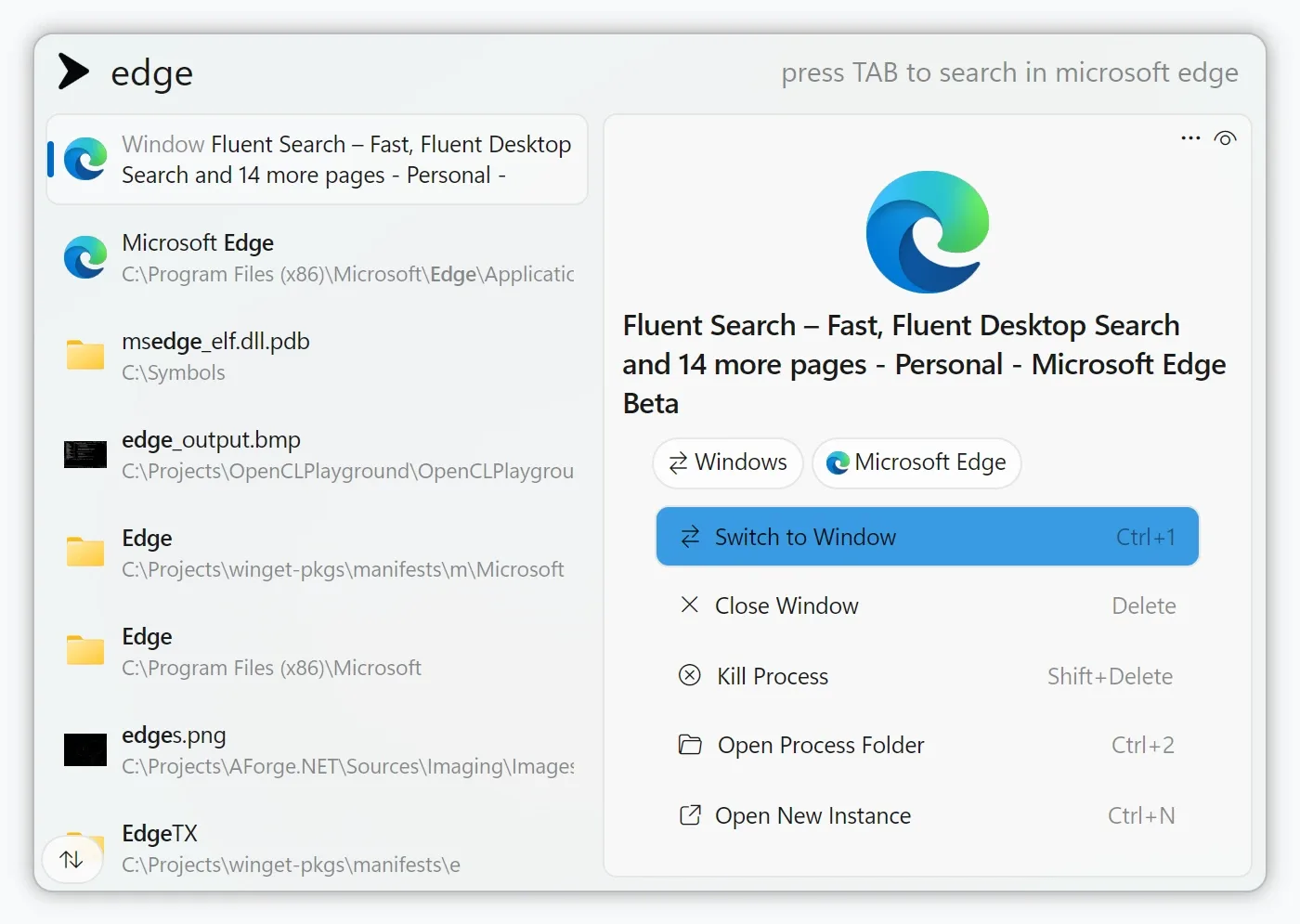
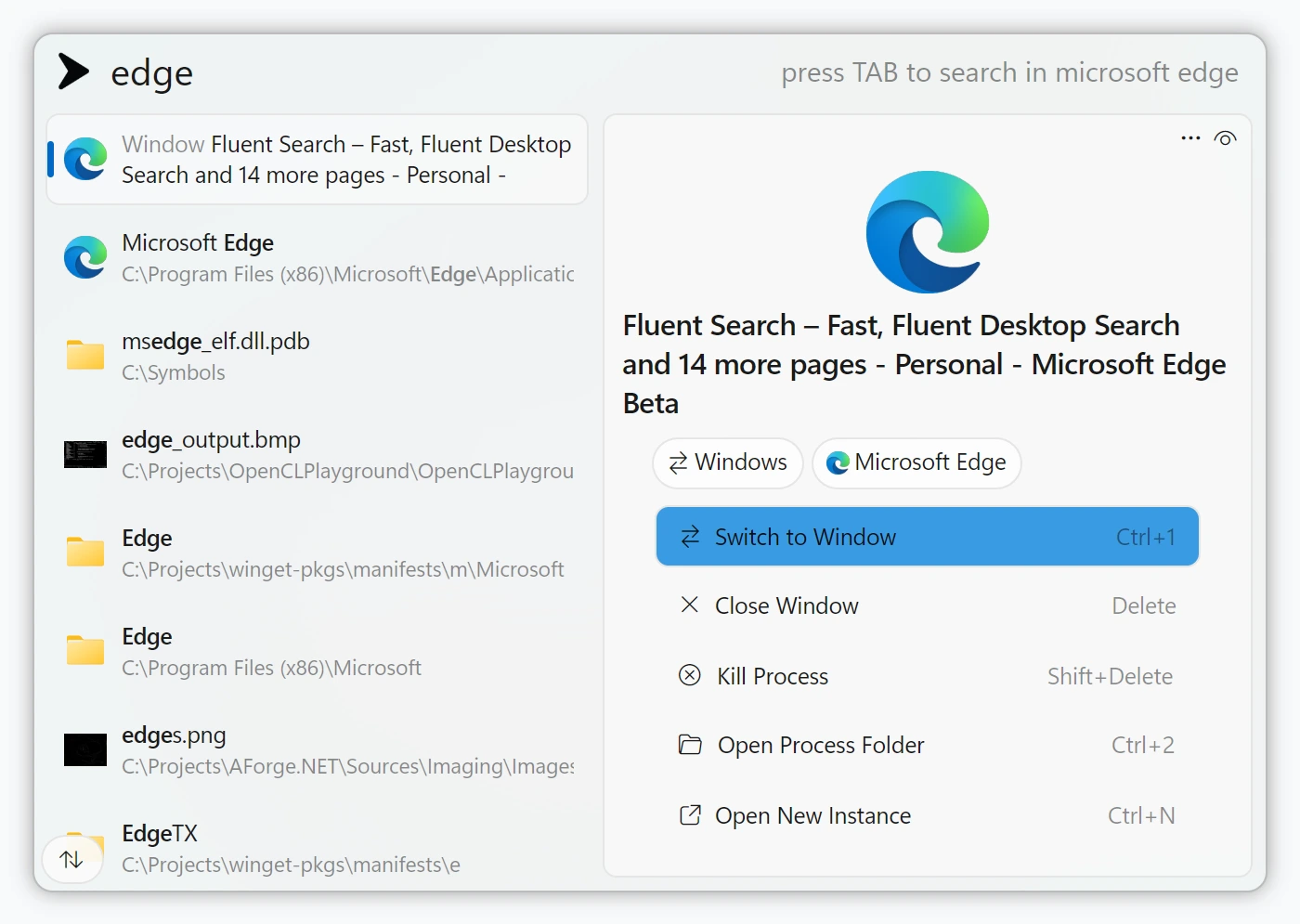
Fluent Search brings several desktop tasks into one search interface: finding a file, opening an installed app, returning to a browser page or switching to an open window. Search tags narrow the scope, while result previews help you inspect an item before opening it. Screen Search adds keyboard labels to clickable elements so you can navigate without reaching for the mouse.
It suits workflows that move repeatedly between files, apps and browser content rather than just looking up filenames. Community plugins extend the available searches. Results depend on configuration: disabled or tag-only search apps will not appear in general searches, browser profiles must be enabled, and searching inside open apps requires the relevant Windows search option. The linked EXE is the publisher's x64 installer for Windows 10 or 11, not the separate ARM64 or portable package.
What it offers
- Search files and folders, installed apps, open windows, browser history and bookmarks from one interface.
- Narrow searches with tags for content types, file extensions or specific folders.
- Preview supported documents, images, web pages and folder contents without fully opening the result.
- Use Screen Search keyboard labels to interact with on-screen elements.
- Extend search options with community plugins and configure which search apps contribute results.
Good to know
- Results depend on enabled search apps, file-indexer configuration and detected browser profiles; tag-only apps require an explicit search tag.
- Searching tabs and other content inside open applications requires enabling Search in app content in the Windows search settings.
- This download is the Windows 10/11 x64 EXE installer. ARM64 devices and portable use require a different publisher package.
Find a file without mixing in app and browser results
The publisher's documented default shortcut is Ctrl + Alt. Type Files and press Tab to restrict the search to files and folders, then enter part of the filename. Use the arrow keys to select a result and Enter to open it. You can also add a folder path or file-extension tag when the same name appears in several places.
If an expected file is missing, check Settings → Apps → Files → File Indexer rather than assuming every drive or folder is already searchable. The documentation lists the built-in indexer, Windows Search and Everything by Voidtools as indexer choices.
Control which sources appear in everyday searches
Settings → Apps lets you enable, disable or configure individual search apps. Search Tag Only keeps a source out of general results until you explicitly select its tag. For browser history or bookmarks, confirm the intended profile is enabled under Settings → Apps → Browser → Profiles.
Window switching and searching inside an application are distinct capabilities. To include tabs, buttons and other in-app elements, enable Search in app content under Settings → Apps → Windows. These instructions come from the publisher's documentation; this entry does not claim a hands-on installation or compatibility test.
Product images
Sources
References used for this listing. Retrieval dates do not indicate hands-on testing.
More in utilities
View category ↗
1.1.1.1 with WARP 2026.8.2115.0
Encrypt traffic from your Mac to Cloudflare’s network with WARP, or use DNS-only mode for encrypted DNS queries to the 1.1.1.1 resolver.
1.1.1.1 with WARP 2026.8.2115.0
Encrypt traffic between your Windows PC and Cloudflare, or use encrypted DNS only, with the free 1.1.1.1 with WARP app.

3uTools 9.12.005
Manage iPhone and iPad photos, music, apps and backups from Windows with 3uTools, a free utility that also includes device checks and firmware flashing tools.