
Utilities Windows
LGTV Companion
Synchronize a network-connected LG WebOS TV with your Windows PC's power and idle states using LGTV Companion, a free, open-source utility.
- Operating system
- Windows 10 and Windows 11
- Architecture
- x64; separate ARM64 installer available
- Download package
- MSI installer
Requires an LG WebOS TV or display and a LAN connection on the same subnet as the PC. Network wake must be enabled on the TV.
Link checked · Download guidance
What is LGTV Companion?
LGTV Companion brings PC-style power management to an LG WebOS TV used as a monitor. Its Windows service can turn the display on or off in response to shutdown, restart, sleep, resume and user inactivity. It also responds to changes in a multi-monitor setup, while command-line controls and an API support custom automation. The service continues working after you close the configuration window.
Setup involves more than connecting an HDMI cable. The PC and TV need a local network connection on the same subnet; enable the TV's network-wake setting even when using Ethernet. The publisher recommends reserving the TV's IP address in your router. Scan for the display or add its IP and MAC addresses manually, enable automatic management, apply the configuration and accept the pairing prompt on the TV.
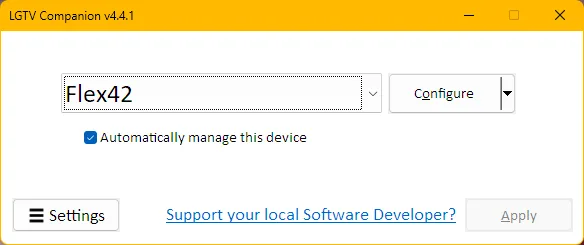
Wake-on-LAN is a practical limitation: the project does not handle TVs on a different subnet or VLAN. Some OLED models also cannot wake over the network during an automatic pixel refresh. Keep the remote available rather than assuming every power-on request will succeed. The publisher's documentation screenshot below shows version 4.4.1; the linked installer is version 5.7.0, so labels can differ.
What it offers
- Manage TV power in response to PC shutdown, restart, sleep, resume and user inactivity.
- Respond to Windows monitor-topology changes in multi-monitor setups.
- Discover network-attached WebOS displays or enter their IP and MAC addresses manually.
- Use command-line controls and an API for external automation.
- Keep automatic management running through a background Windows service after closing the UI.
Good to know
- PC and TV must both be network-connected on the same subnet; cross-subnet or cross-VLAN wake is outside the application's scope.
- Some LG OLED displays cannot be woken over the network during an automatic pixel refresh.
- The TV must allow network wake and accept pairing; HDMI alone does not configure control.
Product images
Sources
References used for this listing. Retrieval dates do not indicate hands-on testing.
More in utilities
View category ↗
1.1.1.1 with WARP 2026.8.2115.0
Encrypt traffic from your Mac to Cloudflare’s network with WARP, or use DNS-only mode for encrypted DNS queries to the 1.1.1.1 resolver.
1.1.1.1 with WARP 2026.8.2115.0
Encrypt traffic between your Windows PC and Cloudflare, or use encrypted DNS only, with the free 1.1.1.1 with WARP app.

3uTools 9.12.005
Manage iPhone and iPad photos, music, apps and backups from Windows with 3uTools, a free utility that also includes device checks and firmware flashing tools.