
Utilities Windows
NetSpeedTray
See live upload and download speeds on the Windows taskbar, inspect network history and track data usage with the free, open-source NetSpeedTray.
- Operating system
- Windows 10 and Windows 11
- Architecture
- x64 (64-bit)
- Download package
- EXE installer
Version 2.1.7 installer; a portable ZIP is offered separately. Some sensor readings need an optional helper.
Link checked · Download guidance
What is NetSpeedTray?
NetSpeedTray puts live upload and download readings on the Windows taskbar so you can check network activity without opening Task Manager. It can select your primary connection automatically or monitor chosen adapters. Customize the widget's layout, units, fonts and color thresholds, or add a mini-graph and hardware readings.
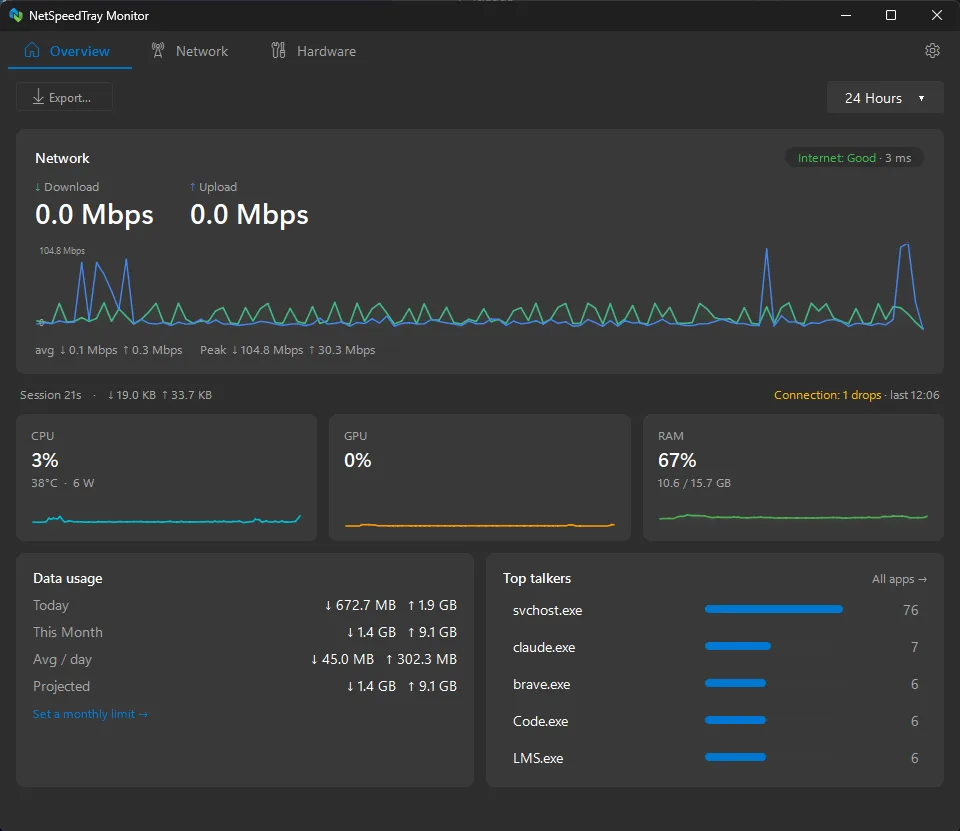
Double-click the widget to open the Monitor, with Overview, Network and Hardware tabs. It combines history charts, per-application connection lists and per-process resource usage. Data-usage totals, a configurable monthly cap and optional alerts help you follow consumption over a billing period. Statistics can be exported to CSV and JSON.
The per-application list shows connections and remote hosts, not each application's upload or download speed. Temperature and power readings also depend on the hardware; some require LibreHardwareMonitor 0.9.4 running as administrator. The linked package is the Windows x64 installer for version 2.1.7, not the separately advertised 2.2 beta. The publisher screenshot illustrates the Monitor interface rather than proving the exact build installed.
What it offers
- Display live upload and download speeds on the taskbar, with automatic or manual network-adapter selection.
- Inspect history and per-application connections in the Monitor's Overview, Network and Hardware tabs.
- Track daily, weekly and monthly data totals; configure a monthly cap, billing reset day and optional usage alerts.
- Show CPU, GPU and memory usage alongside network readings, with hardware-dependent temperature and power information.
- Customize the widget's appearance and export statistics to CSV and JSON.
Good to know
- Per-application network details show connection counts and remote hosts, not per-application bandwidth speeds.
- Some temperature and power sensors require LibreHardwareMonitor 0.9.4 running as administrator; version 0.9.5 removed the WMI interface this release reads.
- Official support is for 64-bit Windows 10 and 11; Windows 7 and 8 are not supported.
Product images
Sources
References used for this listing. Retrieval dates do not indicate hands-on testing.
More in utilities
View category ↗
1.1.1.1 with WARP 2026.8.2115.0
Encrypt traffic from your Mac to Cloudflare’s network with WARP, or use DNS-only mode for encrypted DNS queries to the 1.1.1.1 resolver.
1.1.1.1 with WARP 2026.8.2115.0
Encrypt traffic between your Windows PC and Cloudflare, or use encrypted DNS only, with the free 1.1.1.1 with WARP app.

3uTools 9.12.005
Manage iPhone and iPad photos, music, apps and backups from Windows with 3uTools, a free utility that also includes device checks and firmware flashing tools.