
Utilities Windows
NetTime
Synchronize your Windows clock with network time servers using NetTime, a free, open-source SNTP client with a tray interface and Windows service mode.
- Operating system
- Windows 10 and 11; publisher also lists older Windows versions and Windows Server 2003 through 2022
- Architecture
- 32-bit and 64-bit Windows supported; installer binary architecture not independently inspected
- Download package
- EXE installer
The selected download is the publisher's stable 3.14 installer, not a 3.20 Alpha test package. Publisher compatibility claims were not independently tested.
Link checked · Download guidance
What is NetTime?
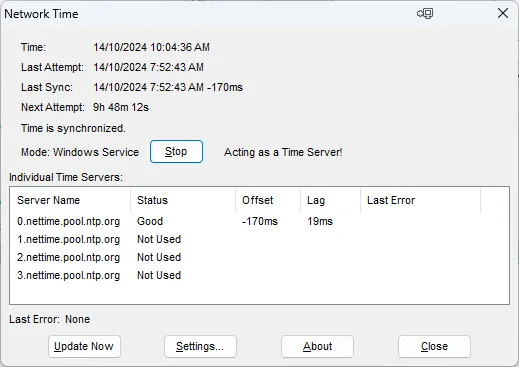
NetTime keeps a Windows computer's clock synchronized with network time servers. It can run as a Windows service, while its tray interface shows the last synchronization, the next attempt, and each queried server's status, offset and network lag. It suits users who want to see and configure their computer's time synchronization rather than leave the process out of view.
The publisher lists version 3.14 as its stable release; the separate 3.20 Alpha packages are test versions. This entry links to the publisher's 3.14 EXE installer. The publisher lists support for both 32-bit and 64-bit Windows, including Windows 10 and 11.
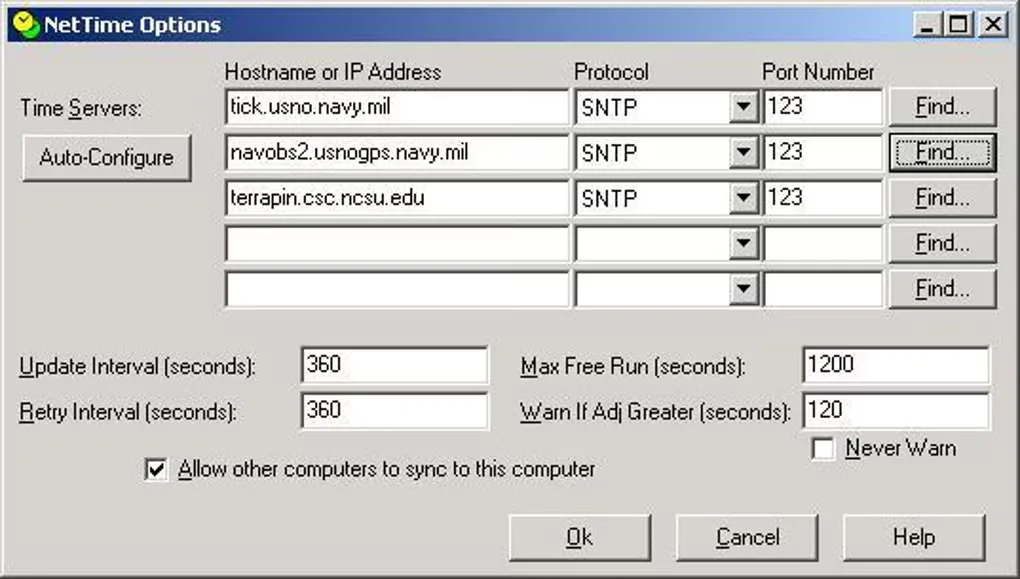
NetTime can also provide time to other computers. That mode requires the built-in Windows Time Service to be disabled and incoming time requests to be allowed through the firewall. For ordinary synchronization, access to the configured servers over UDP port 123 is necessary.
NetTime is an SNTP client, not a replacement for a full NTP client when tighter clock discipline is required. The clock can drift between synchronizations, and uneven network delays can affect accuracy. It works internally with UTC; Windows remains responsible for the time zone and daylight-saving settings.
What it offers
- Synchronize the Windows system clock with network time servers at regular intervals.
- Run as a Windows service and view synchronization status through the tray interface.
- Inspect server status, clock offset, network lag and the next synchronization attempt.
- Check an alternate configured server when a large time adjustment needs verification.
- Optionally provide time to other computers on the network.
Good to know
- Firewall rules must allow NTP traffic over UDP port 123; the protocol does not support proxy servers.
- The local clock can drift between synchronizations, and asymmetric network delays can reduce accuracy; the publisher recommends a full NTP client for stricter timing requirements.
- Time zones and daylight-saving changes depend on Windows configuration, not NetTime.
- Serving time to other computers requires disabling the built-in Windows Time Service and allowing incoming connections.
Product images
Sources
References used for this listing. Retrieval dates do not indicate hands-on testing.
More in utilities
View category ↗
1.1.1.1 with WARP 2026.8.2115.0
Encrypt traffic from your Mac to Cloudflare’s network with WARP, or use DNS-only mode for encrypted DNS queries to the 1.1.1.1 resolver.
1.1.1.1 with WARP 2026.8.2115.0
Encrypt traffic between your Windows PC and Cloudflare, or use encrypted DNS only, with the free 1.1.1.1 with WARP app.

3uTools 9.12.005
Manage iPhone and iPad photos, music, apps and backups from Windows with 3uTools, a free utility that also includes device checks and firmware flashing tools.