

Utilities macOS
PhotoRec for macOS
Recover lost photos, documents, videos and archives with PhotoRec, a free file-carving utility bundled with TestDisk for Intel Macs.
- Operating system
- macOS 10.15 or later
- Architecture
- Intel x86_64 (64-bit)
- Download package
- tar.bz2 archive containing TestDisk and PhotoRec
Stable 7.2 publisher archive; extract before use. This is an Intel build, not a native Apple silicon package. Apple silicon compatibility for this stable archive was not verified.
Link checked · Download guidance
What is PhotoRec?
PhotoRec searches storage for recognizable file signatures to recover lost photos, videos, documents and archives. It works below the file system, making it an option when a memory card or disk has been reformatted or its file system is damaged. The publisher lists hard disks, USB drives, memory cards and supported disk images as recovery sources.
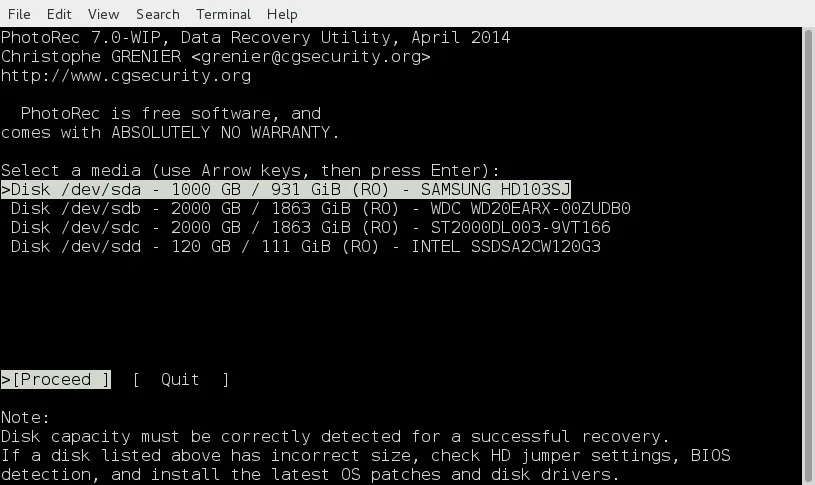
The selected download is the stable TestDisk and PhotoRec 7.2 archive for Intel 64-bit Macs running macOS 10.15 or later, not the separate 7.3-WIP beta. Extract the archive rather than looking for an installer. PhotoRec uses a keyboard-driven text interface: select the source disk, choose the relevant partition and file types, and select a destination for recovered files. Access to a physical device can require administrator privileges.
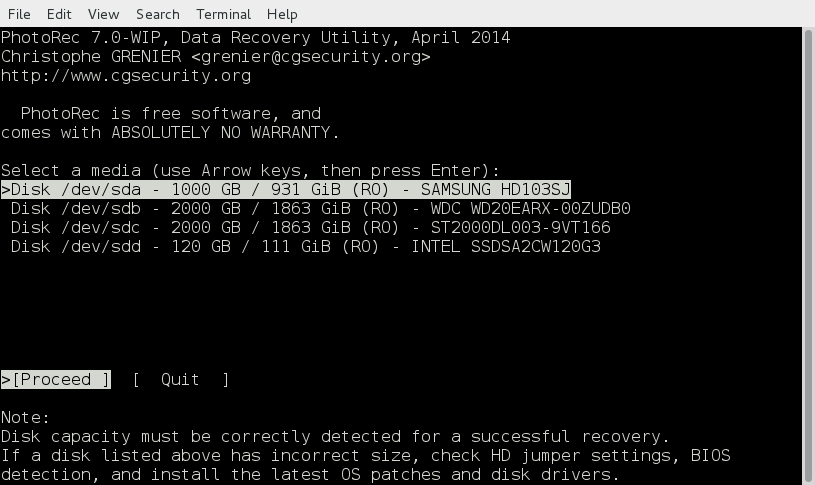
File carving has trade-offs. Original filenames usually cannot be recovered, and fragmented or overwritten data can prevent complete recovery. Stop writing new data to the affected device and save recovered files to a different partition. The screenshot is the publisher's historical PhotoRec 7.0-WIP disk-selection example on Linux; it illustrates the text interface, not the appearance of version 7.2 on macOS.
What it offers
- Search for file signatures without relying on an intact file system.
- Recover supported formats including JPEG, PDF, Office documents and ZIP archives, not just photographs.
- Work with hard disks, USB storage, memory cards, raw DD images and EnCase E01 images.
- Select which file types to recover through the File Opt menu.
- Read the recovery source without writing recovered files back to it.
Good to know
- Original filenames usually cannot be restored; recovered files may need sorting and renaming.
- Fragmented or overwritten file data can prevent complete recovery; recovery is not guaranteed.
- The text interface requires keyboard navigation, and physical-device access can require administrator privileges.
- Save recovered files to a different partition to avoid overwriting data that may still be recoverable.
Product images
Sources
References used for this listing. Retrieval dates do not indicate hands-on testing.
- PhotoRec for Mac - Download ↗Retrieved
- TestDisk Download - CGSecurity ↗Retrieved
- Download and donate - CGSecurity ↗Retrieved
- PhotoRec - Digital Picture and File Recovery ↗Retrieved
- PhotoRec FAQ - CGSecurity ↗Retrieved
- PhotoRec Step By Step - CGSecurity ↗Retrieved
- File:Photorec screenshot.png - CGSecurity ↗Retrieved
More in utilities
View category ↗
1.1.1.1 with WARP 2026.8.2115.0
Encrypt traffic from your Mac to Cloudflare’s network with WARP, or use DNS-only mode for encrypted DNS queries to the 1.1.1.1 resolver.
1.1.1.1 with WARP 2026.8.2115.0
Encrypt traffic between your Windows PC and Cloudflare, or use encrypted DNS only, with the free 1.1.1.1 with WARP app.


3uTools 9.12.005
Manage iPhone and iPad photos, music, apps and backups from Windows with 3uTools, a free utility that also includes device checks and firmware flashing tools.