

Utilities Windows
PingInfoView for Windows
Monitor multiple hosts with ICMP or TCP pings in one Windows table, compare response times and export results with NirSoft's freeware PingInfoView.
- Operating system
- Windows 11 and Windows 10; publisher also lists Windows 2000 through 8 and Server 2003, 2008, 2012 and 2016
- Architecture
- x64 (64-bit)
- Download package
- ZIP archive containing a standalone Windows executable
Selected download is the publisher's 64-bit package; a separate 32-bit ZIP is available. Older-system compatibility is the publisher's product-level list, not a test of this x64 package.
Link checked · Download guidance
What is PingInfoView?
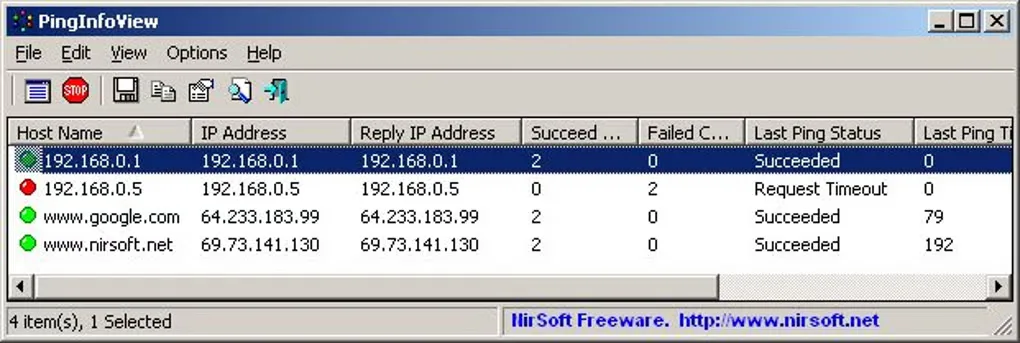
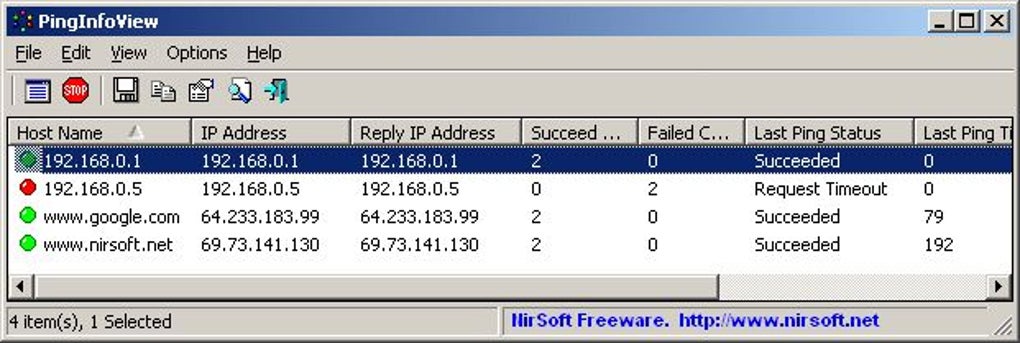
PingInfoView monitors a list of host names or IP addresses without requiring a separate command window for each target. It repeats checks at an interval you choose and displays successful and failed ping counts alongside average response times. This makes it useful for watching several network devices or servers from one Windows desktop.
Use ordinary ICMP pings for host checks, or specify a port to test whether a TCP connection can be established. You can load an address list from a file, add descriptions and groups, and save results as text, CSV, HTML or XML. Automatic exports and failure alerts help retain a record while monitoring continues. The publisher says the utility runs without installation or additional DLL files; the linked package is the separate 64-bit ZIP.
A successful TCP ping confirms only the connection, not that an application can exchange data correctly. NirSoft also warns that too many concurrent pings can produce false failures; reduce the concurrency limit in Advanced Options when that occurs. For long sessions, limit accumulated results to avoid excessive memory use.
What it offers
- Repeat ICMP or TCP checks for multiple host names and IP addresses at a chosen interval.
- Compare successful and failed ping counts, average response times and per-host status in one table.
- Load target lists from a file and organize entries with descriptions and collapsible groups.
- Export results as text, CSV, HTML or XML, including automatic periodic exports.
- Configure sound alerts or a command to run after a chosen number of consecutive failures.
Good to know
- TCP ping tests only whether a connection can be established; it does not send or receive application data.
- High concurrent-ping counts can report failures for working hosts; the publisher recommends lowering the concurrency limit.
- Accumulating ping results over long sessions can consume excessive memory and cause slowdowns or crashes; use the result limit.
Product images
Sources
References used for this listing. Retrieval dates do not indicate hands-on testing.
More in utilities
View category ↗
1.1.1.1 with WARP 2026.8.2115.0
Encrypt traffic from your Mac to Cloudflare’s network with WARP, or use DNS-only mode for encrypted DNS queries to the 1.1.1.1 resolver.
1.1.1.1 with WARP 2026.8.2115.0
Encrypt traffic between your Windows PC and Cloudflare, or use encrypted DNS only, with the free 1.1.1.1 with WARP app.

3uTools 9.12.005
Manage iPhone and iPad photos, music, apps and backups from Windows with 3uTools, a free utility that also includes device checks and firmware flashing tools.