

Utilities Windows
PortScan for Windows
Find network devices and open ports with PortScan, a free Windows utility with ping, traceroute, DNS lookup and connection-speed tools.
Version 2.05 · Direct publisher file
Link checked · Download guidance
What is PortScan?
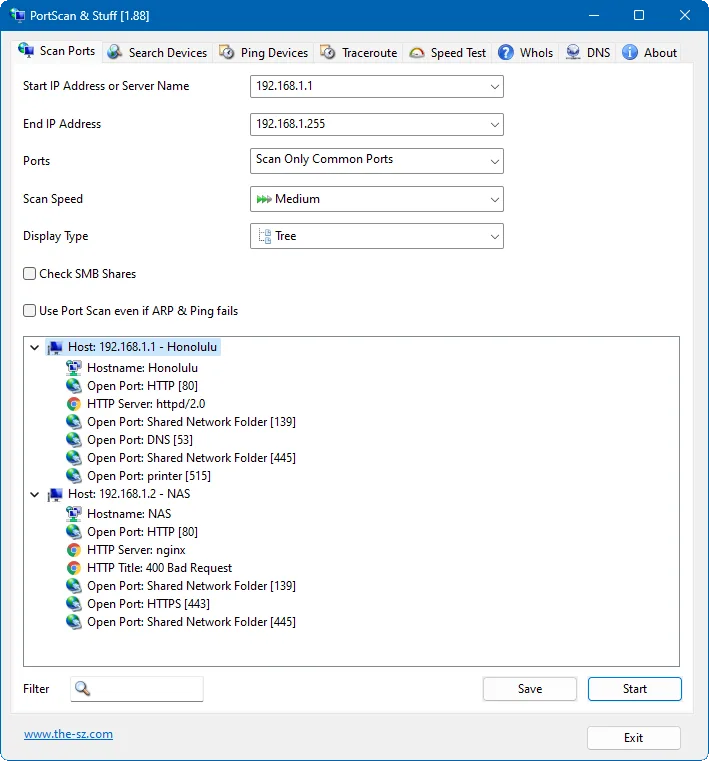
PortScan helps you identify devices on a network and see which services they expose. Scan an IP address range to inspect host names, MAC addresses and open ports, or use device discovery to look for supported routers, printers and NAS devices without already knowing their addresses. It suits checking a local network inventory and investigating a device that is not responding as expected.
Alongside port scanning, the application offers ping response-time graphs, traceroute, Whois and DNS queries. Its speed test measures download, upload and latency; that test transfers data over the connection rather than merely observing existing traffic. The publisher also documents command-line switches for starting scans and saving results automatically.
The Windows download is supplied as a ZIP archive. To keep settings in PortScan.ini for portable use, the publisher specifies the /p option or a portable.dat or PortScan.ini file in the program folder. The screenshot below is the publisher’s illustration of version 1.88, not a capture of the advertised 2.05 release.
What it offers
- Scan an IP address range for open ports and inspect host names, MAC addresses and service information.
- Discover supported devices and services, including UPnP, Bonjour and selected router, printer and NAS families.
- Ping devices with several packet-size modes or continuously, with a response-time distribution graph.
- Use traceroute, Whois and DNS lookups, or measure connection download speed, upload speed and latency.
- Start scans and save results through documented command-line options.
Good to know
- The speed test downloads and uploads data, consuming bandwidth on the connection being measured.
- Portable settings storage requires the /p option or a portable.dat or PortScan.ini file in the application folder.
Product images
Sources
References used for this listing. Retrieval dates do not indicate hands-on testing.
More in utilities
View category ↗
1.1.1.1 with WARP 2026.8.2115.0
Encrypt traffic from your Mac to Cloudflare’s network with WARP, or use DNS-only mode for encrypted DNS queries to the 1.1.1.1 resolver.
1.1.1.1 with WARP 2026.8.2115.0
Encrypt traffic between your Windows PC and Cloudflare, or use encrypted DNS only, with the free 1.1.1.1 with WARP app.

3uTools 9.12.005
Manage iPhone and iPad photos, music, apps and backups from Windows with 3uTools, a free utility that also includes device checks and firmware flashing tools.