

Utilities Windows
Rainmeter for Windows
Add movable desktop skins for hardware meters, clocks and other widgets with Rainmeter, a free, open-source Windows customization tool.
- Operating system
- Windows 7 through Windows 11
- Architecture
- 32-bit and 64-bit Windows
- Download package
- EXE installer with standard and portable installation options
For 4.5.28: Windows 7 needs SP1 and Platform Update; 32-/64-bit selection is documented. Publisher identifies 4.5.28 as the last release for older Windows and 32-bit systems; 5.0 requires 64-bit Windows 10 1903+ or Windows 11. No ARM-native package is claimed.
Link checked · Download guidance
What is Rainmeter?
Rainmeter puts customizable skins on your Windows desktop. Each skin is its own movable window, so you can arrange information and controls around your workspace rather than use a fixed dashboard. Skins range from hardware usage meters to audio visualizers, with their functions determined by the skin author.
Use the Manage window and context menus to organize skins, adjust their position and transparency, and save or restore layouts. Using a downloaded skin as supplied does not require programming; deeper changes can involve editing variables or the skin's configuration code. The publisher includes a few starter skins, while additional designs come from the community.
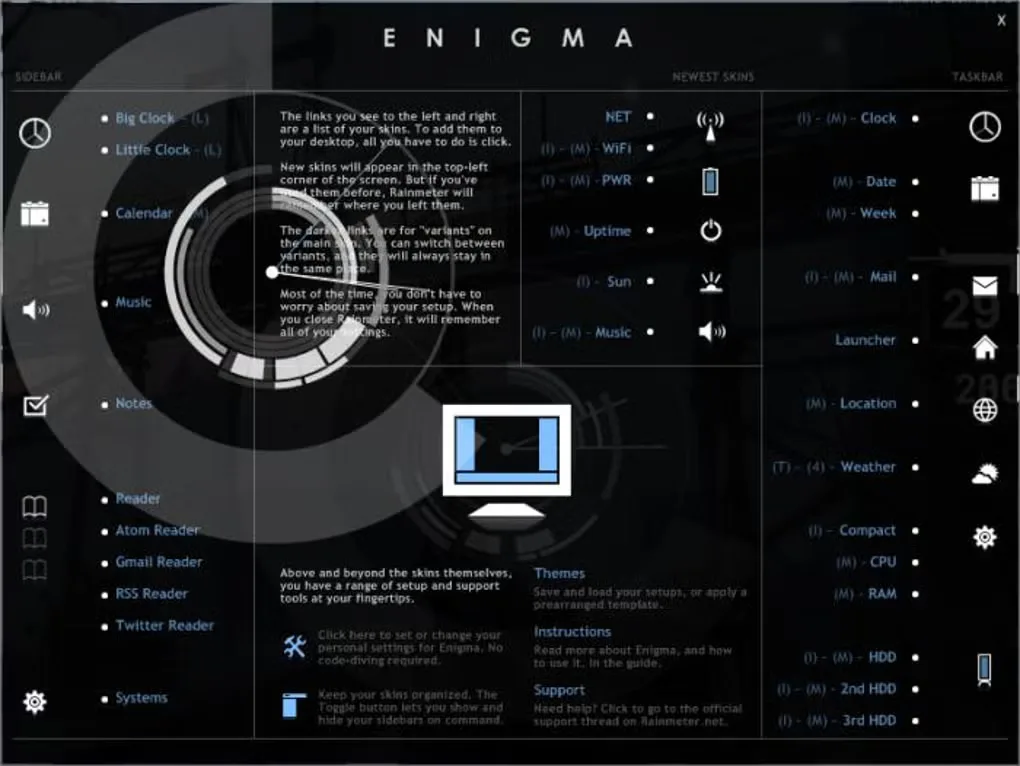
Rainmeter does not replace the Windows shell or change built-in elements such as the taskbar, Start button or File Explorer. It is not a window manager, and a media-control skin still needs the media player it controls. The gallery includes the publisher’s Manage-window illustration and a historical Enigma community skin interface. Neither is a new local capture or a promise that Enigma is included with the linked release.
What it offers
- Run multiple desktop skins at once and drag each skin to a chosen position.
- Display skin-based hardware usage meters, clocks and audio visualizers.
- Manage skins, save and restore layouts, and adjust transparency or always-on-top behavior.
- Customize skin variables and configuration code, or use community skins as supplied.
Good to know
- Does not change the taskbar, Start button, desktop icons or File Explorer styling, and is not a window manager.
- Deeper skin customization can require editing configuration code; features and controls vary by skin.
- Skins that control another application do not replace it; that application must still be running.
- Layouts save Rainmeter settings and skin positions, not the skin folders or files; they are not a backup of edited skin code.
What Rainmeter changes—and what it leaves alone
Rainmeter is a host for desktop skins, not a replacement Windows interface. Each skin runs as its own window; you can drag it to an appropriate location and combine skins from different authors. That makes it useful for a compact clock, system-information panel or audio display beside your normal applications rather than a single full-screen dashboard.
The distinction matters when you are following a desktop-customization example. Rainmeter does not restyle the taskbar, Start button, File Explorer or desktop icons. It does not manage workspaces or minimize and maximize other application windows. A finished desktop shown online may combine Rainmeter with separate wallpapers, icon packs and other utilities; installing a skin alone does not reproduce that entire setup.
Arrange a useful layout before adding more skins
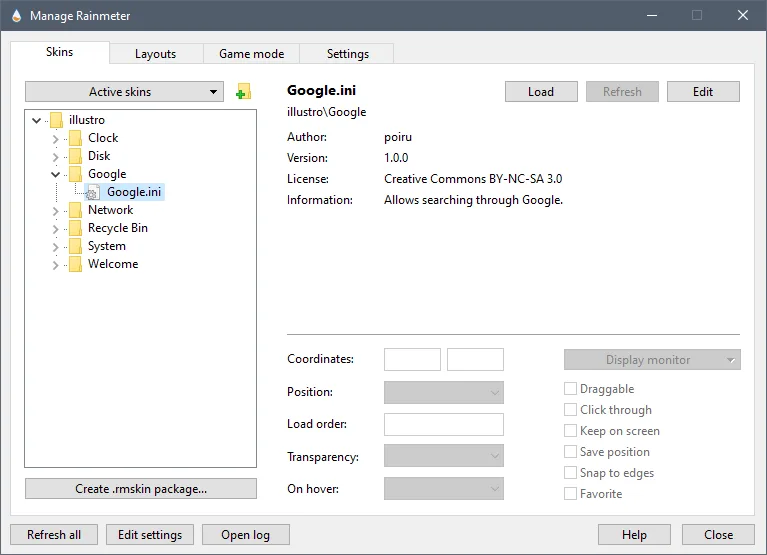
Open Manage by left-clicking Rainmeter’s notification-area icon, or right-click a running skin and choose Manage skin. On the Skins tab, select a skin’s .ini file and use Load; use Unload to remove it from the desktop without deleting its files. Drag loaded skins into place, then adjust their coordinates, transparency and position relative to other windows in Manage.
Once the arrangement is useful, open Layouts, enter a distinct name and click Save. Select that name and use Load to restore the arrangement later. Layouts record active and inactive skins, positions and Rainmeter settings; they do not include the skin folders or configuration files themselves. Keep a separate copy of skin files before editing them. Saving under an existing layout name replaces that saved state.
The publisher supplies a few starter skins, while community suites provide additional designs. A clock and a hardware meter can come from different suites. The Enigma screenshot illustrates a community interface, not an assurance that Enigma ships with the selected release. The Manage screenshot shows the actual application controls used to organize skins.
Using a skin does not mean writing one
Downloaded skins can be used as supplied without programming. Some authors expose separate graphical controls; other skins expect you to change labelled variables in their configuration files. These are different levels of customization, so a skin’s appearance alone does not tell you whether changing its colors or content will be a click-based task.
Deeper alterations use Rainmeter’s configuration language. Its measures gather information and its meters draw visual elements such as text, charts, images and buttons. The documentation also describes Lua for advanced scripting. This is useful when you want to adapt a display precisely, but it should not be confused with a promise that every community skin has a complete settings panel.
Windows requirements and installation choices
The linked release is Rainmeter 4.5.28, revision 3936, dated October 12, 2026. Its publisher lists Windows 7 through Windows 11; Windows 7 needs Service Pack 1 and the Platform Update. The installer supports 32-bit and 64-bit selection. Rainmeter’s 4.5 change log identifies 4.5.28 as the last version for older Windows and 32-bit systems; the forthcoming 5.0 requires 64-bit Windows 10 version 1903 or later, or Windows 11. Do not apply the 4.5 compatibility range to 5.0.
Choose Standard installation for the documented Windows integration: the installer adds the program, Start menu entries and the .rmskin file association. Clear Launch Rainmeter on startup if you do not want it to start with Windows. Skins normally live in Documents\Rainmeter\Skins, while settings and layouts live in AppData\Roaming\Rainmeter under your user account.
Choose Portable installation when you want the program, skins and settings kept in one selected folder, without Windows Registry or Start menu changes. The publisher says an existing installation can be updated without first uninstalling it and that settings, skins and plugins are preserved. The download here is the identified 4.5.28 EXE with retained HEAD-only link evidence, not a locally installed or tested application.
Install a skin without confusing it with a whole desktop theme
For a .rmskin package, double-click the file to open Rainmeter Skin Installer. Inspect the listed skins, layouts and any plugins before clicking Install. A package may load skins automatically, and selecting Apply included layout can replace your current arrangement. Save a named layout first if you want an easy route back. The documented Backup skins option preserves existing skin files when a package replaces them unless you turn that option off.
In a portable installation, start SkinInstaller.exe from the Rainmeter program folder and browse to the .rmskin file. For a ZIP, RAR or 7Z skin archive, follow the author’s readme, extract the skin folder into the Rainmeter Skins folder, and choose Refresh all from the notification-area menu. The new skin can then be loaded in Manage. A skin package is not a promise to install the wallpaper, icons or separate utilities seen in a finished desktop example.
A skin is not the application it controls
Rainmeter can display controls that send commands to another application, but those controls do not replace the underlying program. The official introduction uses a media-player skin as its example: the media player must still be running. The same practical distinction helps when choosing a skin for a workflow rather than only for its appearance.
A skin can read information from the computer, a website or another source. Consequently, the data and controls available are properties of that skin and its dependencies, not a uniform promise made by Rainmeter. Check the skin author’s instructions when a community design needs another program, plugin or external data source.
Choose Rainmeter for widgets, not a one-click desktop conversion
Choose Rainmeter when the goal is movable desktop information panels. If the goal is a different taskbar, Start interface or File Explorer style, its official documentation places those changes outside Rainmeter’s role. A different class of customization tool is needed for those components; no named alternative is recommended here without product-specific evidence.
A community skin may depend on another application or external data source. Choose it for the information it can actually display and the instructions its author supplies, not just the appearance of a desktop showcase. No measured memory use, frame rate, battery result or successful local installation is claimed.
Undo a layout change or remove Rainmeter
To remove one panel, select its .ini file in Manage and click Unload. To undo a broader arrangement change, select your saved layout in the Layouts tab and click Load. Rainmeter also saves the previous state as @Backup when a layout is loaded. That is a settings-level recovery option, not a versioned backup of skin code: loading a layout will not undo edits to a skin’s files.
The installation guide directs standard-installation users to Windows Add or Remove programs to uninstall Rainmeter. Before removing the application or any folders, keep copies of the skins, settings and layouts you want to retain. This guide does not claim the uninstaller deletes or preserves every user-created file, and uninstalling Rainmeter does not undo separate wallpaper, icon or other customization tools.
Product images
Sources
References used for this listing. Retrieval dates do not indicate hands-on testing.
- Rainmeter — official repository and README ↗Retrieved
- Rainmeter, desktop customization tool — official homepage ↗Retrieved
- Getting Started — Rainmeter Documentation ↗Retrieved
- Installing Rainmeter — Rainmeter Documentation ↗Retrieved
- Rainmeter - Download — Windows page and screenshot gallery ↗Retrieved
- Official homepage — corroboration for this revision ↗Retrieved
- Getting Started — skin workflow and editing ↗Retrieved
- Installing Rainmeter — setup, portability and uninstall ↗Retrieved
- Manage — controls, layouts and documentation screenshot ↗Retrieved
- Installing Skins — packages and archives ↗Retrieved
- Rainmeter 4.5 Changes — release and Windows boundary ↗Retrieved
More in utilities
View category ↗
1.1.1.1 with WARP 2026.8.2115.0
Encrypt traffic from your Mac to Cloudflare’s network with WARP, or use DNS-only mode for encrypted DNS queries to the 1.1.1.1 resolver.
1.1.1.1 with WARP 2026.8.2115.0
Encrypt traffic between your Windows PC and Cloudflare, or use encrypted DNS only, with the free 1.1.1.1 with WARP app.


3uTools 9.12.005
Manage iPhone and iPad photos, music, apps and backups from Windows with 3uTools, a free utility that also includes device checks and firmware flashing tools.