

Utilities Windows
RegistryChangesView for Windows
Compare Windows Registry snapshots to inspect added, removed and modified keys or values, then export selected changes with NirSoft's portable freeware utility.
- Operating system
- Windows XP through Windows 11, as listed by the publisher
- Architecture
- 64-bit (x64); separate 32-bit package available
- Download package
- ZIP archive; portable executable
This link selects the publisher's 64-bit package. No installation process or additional DLL files are required according to NirSoft.
Link checked · Download guidance
What is RegistryChangesView?
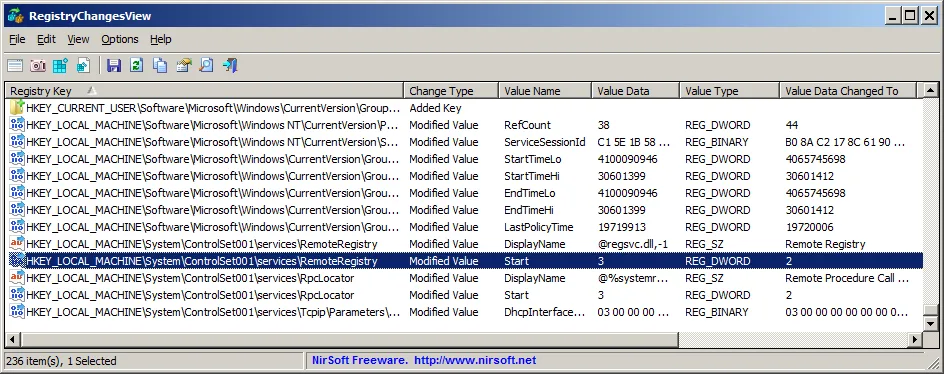
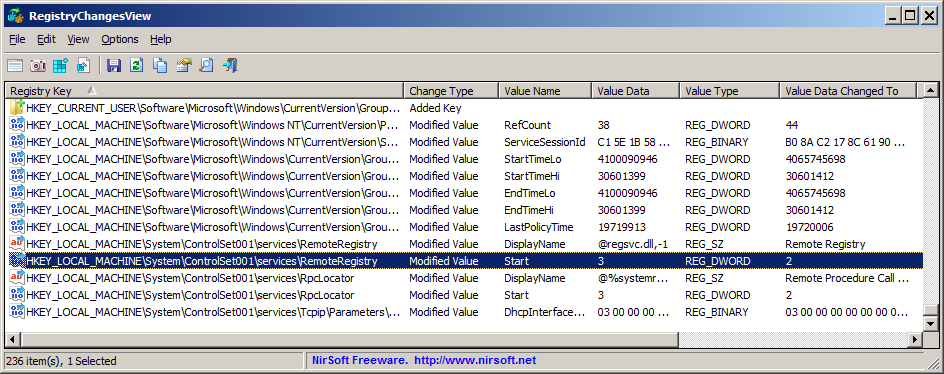
RegistryChangesView captures the Windows Registry and compares it with a later state. Use it to inspect what changed after a software installation or a Windows configuration change. It can compare two saved snapshots, a snapshot with the current Registry, or Registry files in a Windows shadow copy. The results table shows change types, Registry paths and value data before and after a modification.
You can choose which hives to compare, filter the results and export selected changes as a .reg file. The comparison direction determines whether that file applies the changes forward or reverses them. Command-line options also support snapshot creation and exporting comparisons to formats such as CSV, text, HTML and XML. The linked download is the publisher's 64-bit ZIP package; the utility runs without an installation process.
A before-and-after comparison does not isolate one application's activity: Windows and other programs may change the Registry during the same interval. Review the results before applying an exported .reg file. SAM and SECURITY hives are excluded by default; snapshots containing those hives expose sensitive encryption keys and password hashes if accessible to other users.
What it offers
- Create Registry snapshots and compare saved snapshots, the current Registry or Registry data from Windows shadow copies.
- Inspect added and removed keys or values and modified values with before-and-after data.
- Choose Registry hives and use Quick Filter to narrow the displayed keys or values.
- Export selected changes to a .reg file, with the comparison direction controlling the generated changes.
- Create snapshots and export comparison results through command-line options.
Good to know
- Changes made by Windows or other programs during the comparison interval appear alongside changes from the application being investigated.
- SAM and SECURITY hives are excluded by default; including them creates snapshots containing sensitive encryption keys and password hashes.
Product images
Sources
References used for this listing. Retrieval dates do not indicate hands-on testing.
More in utilities
View category ↗
1.1.1.1 with WARP 2026.8.2115.0
Encrypt traffic from your Mac to Cloudflare’s network with WARP, or use DNS-only mode for encrypted DNS queries to the 1.1.1.1 resolver.
1.1.1.1 with WARP 2026.8.2115.0
Encrypt traffic between your Windows PC and Cloudflare, or use encrypted DNS only, with the free 1.1.1.1 with WARP app.

3uTools 9.12.005
Manage iPhone and iPad photos, music, apps and backups from Windows with 3uTools, a free utility that also includes device checks and firmware flashing tools.