

Utilities Windows
ScreenStyler for Windows
Build a coordinated Windows desktop style with wallpapers, Rainmeter widgets and a RocketDock layout through a visual editor; officially listed for Windows 10 64-bit.
- Operating system
- Windows 10
- Architecture
- 64-bit
- Download package
- Windows beta setup linked from the official product page
The official FAQ lists Windows 10 64-bit, without a minimum Windows build. Windows 11 support is not established. No installation or current-build compatibility test was performed.
This opens the official acquisition page, not a verified installer file.
Publisher page reviewed · Download guidance
What is ScreenStyler?
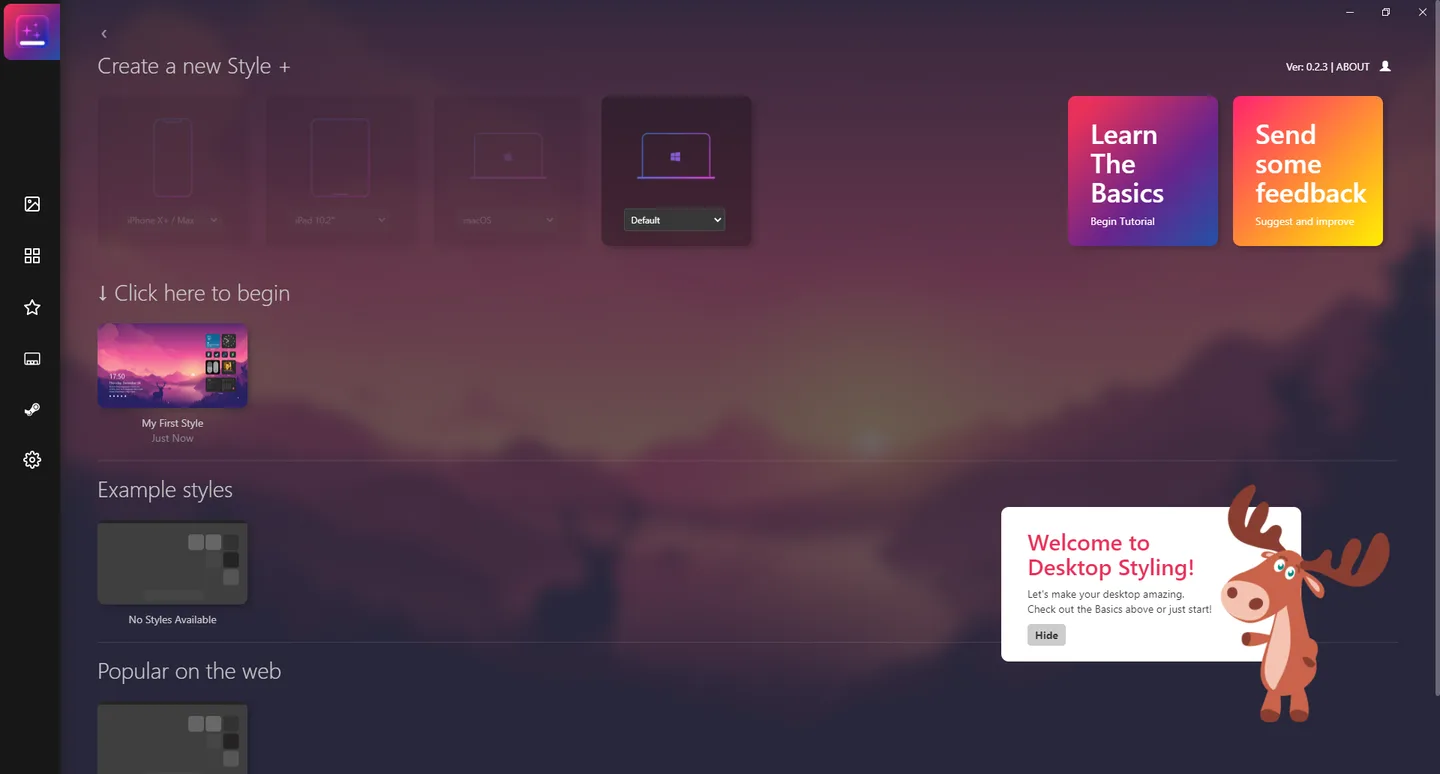
ScreenStyler brings several desktop-customization pieces into one visual workspace. A Style combines wallpaper choices, widgets powered by Rainmeter and dock-and-icon layouts using RocketDock, with Steam styling also named in the publisher FAQ. The aim is to arrange a desktop visually instead of manually editing resource files for each supported application.
It is not a promise to reskin all of Windows. The official FAQ says visual styles were removed after private beta because consistent results and Windows-file modifications were concerns. The same FAQ lists Windows 10 64-bit, not Windows 11, as the supported Windows target. The publisher homepage offers beta 0.2.3 in the retained October 29, 2026 source observation, so this page separates documented capabilities from roadmap illustrations and does not treat them as completed features.
What it offers
- Create desktop Styles visually rather than hand-editing each supported application’s files.
- Coordinate wallpaper, Rainmeter widgets, RocketDock dock-and-icon layouts and publisher-listed Steam styling.
- Apply a Style, save it and export individual Styles for sharing.
- Import PNG icons into desktop or dock layouts.
- Use publisher-described dynamic wallpapers that change with the time of day.
- Close ScreenStyler after applying a Style; the FAQ says the editor does not need to remain running.
Good to know
- The official Windows support statement is Windows 10 64-bit; Windows 11 support is not established by the publisher FAQ.
- The offered release is beta 0.2.3; roadmap sections are not proof that every illustrated integration is available.
- Windows visual styles are not included in the current documented feature set.
- There is no bulk backup of all Styles; the FAQ recommends exporting them individually.
- The documented editor uses premade templates and widgets rather than providing a custom widget creator.
- Uninstalling ScreenStyler alone does not remove Rainmeter widgets; the FAQ says Rainmeter must also be removed if those widgets are unwanted.
One Style coordinates several applications
Think of ScreenStyler as a visual arrangement tool, not a replacement Windows shell. Its FAQ says it creates Styles that applications such as Rainmeter, RocketDock and Steam can use. Wallpaper and widget placement can therefore be designed together without presenting every underlying program as if it were a ScreenStyler-native component.
That distinction matters when installing or removing the result. The editor is one application; Rainmeter and RocketDock perform their own jobs. The publisher says ScreenStyler can close after a Style is applied, but that does not mean the applications responsible for widgets or the dock have stopped running.
Create, apply and preserve a layout
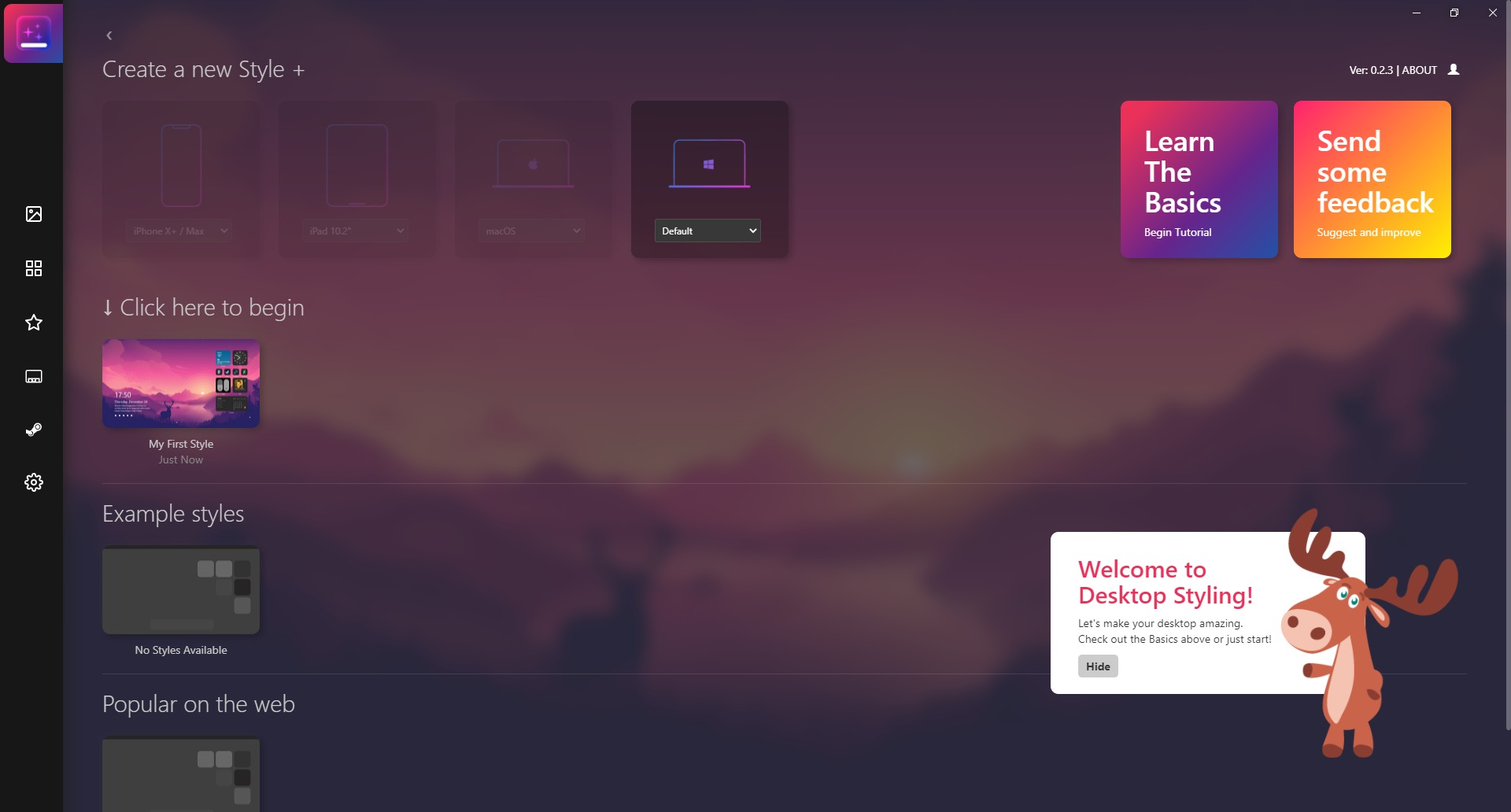
The publisher’s starting point is Create Style: select a block such as Windows, work on the layout and press the green button to apply the Style. Use the save icon to preserve it in the editor, or the download icon to export an individual Style for sharing. PNG icons can be brought into the design.
Treat save and export as different actions. The FAQ says there is no one-step backup of every Style and recommends exporting them individually. Before reorganizing several saved layouts or removing the editor, export the particular Styles you want to keep; this is more useful than assuming the entire library is covered by one backup command.
Choose the layer you actually want to change
The documented modules cover wallpaper, Rainmeter widgets, RocketDock dock and icons, and Steam. A clock or system-information panel belongs to the widget side of the layout; program-launch icons and their arrangement belong to the dock. You do not need a Windows visual-style patcher merely to understand these categories.
The FAQ describes dynamic wallpapers as backgrounds that shift with the time of day. That is not the same promise as playing arbitrary video files. ScreenStyler’s original page also contains a roadmap, so an illustration of a future module should not be interpreted as a working integration in beta 0.2.3.
Windows 10 64-bit is the documented target
The official FAQ names Windows 10 64-bit. It gives no minimum Windows build, Windows 11 support statement, current-build certification or 32-bit support claim. The gHacks preview reports that some functions work on Windows 11 but warns about taskbar options. That dated observation is not a publisher support commitment or a compatibility test by SoftGalaxy.
The same FAQ explains that Windows visual styles were removed after private testing. ScreenStyler therefore should not be chosen on the assumption that it will apply arbitrary .msstyles themes or replace every Windows control. The homepage’s future-features section includes Visual Styles; that is a roadmap item, not evidence of reinstatement.
Installation source and administrator access
The official homepage’s beta 0.2.3 button points to a MediaFire-hosted Windows setup file. The publisher describes ScreenStyler as free and without ads; no purchase or store-account requirement is stated on the inspected product page. This entry opens that official acquisition page, not a checked binary. Neither the MediaFire dispatcher nor the installer was opened, downloaded or executed for this guide.
The FAQ says administrator access is used to copy styling files into supported applications’ directories, including Program Files/RocketDock. That explains the requested capability; it is not an independent safety audit. If Windows or security software blocks a package, do not disable protection simply to follow promotional installation advice.
Removing the editor is not a complete visual reset
The publisher’s removal instruction is to uninstall ScreenStyler through Control Panel. It separately states that Rainmeter must also be uninstalled if you do not want the desktop widgets. Because the layout combines more than one application, removing only the editor should not be described as a guaranteed return to the previous desktop.
Export any Styles you intend to preserve before removal. Review the remaining customization components separately and keep only the ones you still use. The retained FAQ does not provide a single undo action that restores every previous wallpaper, dock and third-party application configuration, so no such recovery promise is made here.
Choose the visual editor or the underlying tools
ScreenStyler suits a Windows 10 user who wants to compose premade wallpaper, widget and dock elements in one place. Its FAQ explicitly says it is a big-picture tool based on premade templates rather than a custom widget maker. If your goal is to develop original Rainmeter skins, Rainmeter itself is the relevant underlying environment rather than a hidden ScreenStyler authoring mode.
If animated video wallpaper is the requirement, the dated gHacks preview says ScreenStyler lacks animated-wallpaper support and points readers to Lively or AutoWall. Those are alternatives named by that source, not products installed or compared for this guide. Time-of-day wallpaper changes in the ScreenStyler FAQ should not be confused with video playback.
Product images
Sources
References used for this listing. Retrieval dates do not indicate hands-on testing.
More in utilities
View category ↗
1.1.1.1 with WARP 2026.8.2115.0
Encrypt traffic from your Mac to Cloudflare’s network with WARP, or use DNS-only mode for encrypted DNS queries to the 1.1.1.1 resolver.
1.1.1.1 with WARP 2026.8.2115.0
Encrypt traffic between your Windows PC and Cloudflare, or use encrypted DNS only, with the free 1.1.1.1 with WARP app.

3uTools 9.12.005
Manage iPhone and iPad photos, music, apps and backups from Windows with 3uTools, a free utility that also includes device checks and firmware flashing tools.