

Utilities Windows
SecureUxTheme for Windows
Enable compatible custom Windows visual styles with an in-memory, Secure Boot-compatible theme patcher. Version 4 uses MSI installers and Windows Personalization instead of the old ThemeTool.
- Operating system
- Windows 8.1, Windows 10; Windows 11 RTM–24H2 explicitly listed
- Architecture
- x86/x64; ARM64 for Windows 10/11 as listed by the project
- Download package
- MSI installers in the official v4 release
Windows Server variants are also listed. Future Windows versions are untested. Theme support must match the Windows build independently.
This opens the official acquisition page, not a verified installer file.
Publisher page reviewed · Download guidance
What is SecureUxTheme?
SecureUxTheme enables custom Windows visual styles by removing style-signature verification in memory. The project describes an approach that does not modify system files or require a driver and is compatible with Secure Boot. It is an enabling component: installing it alone does not supply a visual theme or automatically change the appearance of the desktop.
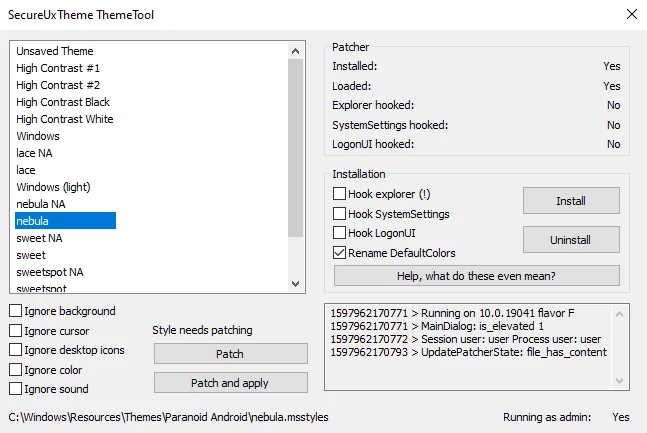
Version 4.0.0 changes the workflow substantially. The official release removes the bundled ThemeTool interface, no longer requires patching style files, and allows themes to be changed through Windows Settings or Personalization. Older tutorials showing a Patch and apply button describe the previous generation, not the current MSI-based installation. Theme compatibility remains a separate requirement from patcher compatibility.
What it offers
- Enable third-party Windows visual styles by removing style-signature verification in memory.
- Use the publisher-described driver-free approach without modifying system files.
- Remain compatible with Secure Boot according to the project.
- Use Windows Settings or Personalization to change themes with version 4.
- Choose among official MSI installers; version 4 release notes name ARM64X support.
- Use the project-documented fix for some colors reset by LogonUI when locking Windows.
Good to know
- This is an enabling tool, not a theme collection; installing it alone makes no visual changes.
- Each chosen theme must separately support the installed Windows version and build.
- The publisher lists Windows 11 RTM through 24H2; future Windows versions are explicitly untested, not guaranteed.
- An existing pre-v4 installation must be uninstalled using ThemeTool from its previous release before installing v4.
- The old ThemeTool screenshot is historical; its patch-and-apply workflow is not the current v4 interface.
- The project documents login-loop recovery paths; no system modification tool or custom theme is guaranteed risk-free.
A theme enabler—not a theme itself
SecureUxTheme changes Windows’ handling of visual-style signatures so compatible custom styles can be used. The publisher describes it as an in-memory patcher with no driver and no modification of system files. Secure Boot compatibility is a project claim about this mechanism, not a statement that every theme or downloaded file is harmless.
Installing the tool alone does not install a custom look. You still need the visual-style files from a theme author, and those files must match your version of Windows. The patcher and the artwork are different components with separate compatibility questions.
Version 4 removes the old Patch and apply workflow
The v4.0.0 release explicitly removes ThemeTool and says style-file patching is no longer needed. Themes can now be selected through immersive Windows Settings and Personalization. This is a material change: a tutorial instructing you to select a theme in ThemeTool and press Patch and apply belongs to an earlier release.
The screenshot on this page is deliberately labeled historical. It is the real ThemeTool image retained in the official v3 README, useful for recognizing older guides and installations. It is not a screenshot of a new v4 control panel. The current project instead describes a configuration-free enabling component.
Match both the patcher and the visual style to Windows
The current README lists Windows 8.1 and 10 and explicitly names Windows 11 from RTM through 24H2. It also lists architectures and several Windows Server versions. Its separate future-version entry says untested; that wording should not be converted into blanket support for every newer Windows release.
Even on a listed Windows release, a custom theme needs its own compatible build. A theme designed for a different release can fail independently of the patcher. Check the theme author’s supported builds before applying it, rather than treating a broad Windows 11 label as sufficient evidence.
Install from the original release; remove an older hook first
Open the official v4.0.0 release page to choose the MSI appropriate to the machine’s architecture. The link here opens the publisher’s acquisition page, not a checked installer binary. SecureUxTheme is free and open source; no purchase or store subscription is identified in the retained official project evidence. No installer was downloaded or executed for this entry.
If SecureUxTheme is already installed from an older release, v4’s release notes require using ThemeTool from that earlier release to uninstall it first. The new installer will refuse to continue until the older installation is removed. Do not interpret that refusal as an instruction to bypass the check or manually delete arbitrary Windows files.
Check the Windows release before choosing a visual style
Treat patcher support and theme support as two separate checks. The official README lists Windows 8.1 on x86/x64 and Windows 10 on x86/x64/ARM64. Its Windows 11 entry explicitly spans RTM through 24H2. A machine running a later release falls under the project’s untested-future-versions wording, not under a verified compatibility promise.
Next, check the chosen visual style against the theme author’s own Windows version and build requirements. Only after both checks should you follow the current release’s installation and theme-selection guidance. The historical ThemeTool image below can help identify an older tutorial, but its Patch and apply controls are not instructions for v4.
Separate theme rollback from tool removal
If the problem began after selecting a theme, the project has a specific theme-recovery guide: boot into Safe Mode, choose the default Windows 10 theme in Settings and reboot. The guide’s wording is Windows 10-specific; it is retained as the publisher’s procedure, not silently rewritten into a tested Windows 11 recovery recipe.
Uninstalling the enabling component and choosing a stock theme are separate operations. The installation-recovery guide says the software can be removed through installed programs after Windows boots normally. For an older release, follow the release-specific ThemeTool removal requirement before upgrading rather than mixing old and new instructions.
When Windows cannot reach a normal desktop
The project distinguishes a login loop after installing SecureUxTheme from one after applying a theme. Its installation-recovery page uses the Windows recovery environment, opens Registry Editor and loads the SOFTWARE hive from the actual Windows installation—not the recovery environment’s own Windows directory. This is an advanced recovery path, not a routine setup step.
Within that loaded hive, the guide targets Image File Execution Options and the VerifierDlls and GlobalFlag values for systemsettings.exe, explorer.exe, winlogon.exe and LogonUI.exe, where present. It then instructs a reboot and removal through installed programs. Follow the original guide for the exact keys and applicability; deleting unrelated registry values is not part of the documented fix.
Read the recovery guide before applying a new theme, while it is still easy to identify the installed Windows volume and access the instructions. This entry reports the publisher’s recovery documentation; it does not claim that SoftGalaxy reproduced a login loop or validated those steps on a test machine.
Choose the smallest customization change
SecureUxTheme addresses Windows visual styles. It does not promise per-application theme selection; the README says that request is close to impossible within this approach and points to separate software for particular applications. A themed screenshot also does not mean that every app uses Windows-drawn controls or will match the style.
For a separate interface to change themes, the current README points to ThemeToolSharp. It also says that extra tool is optional: Personalization or Themes can already change themes after the v4 enabling component is installed. ThemeToolSharp is therefore an optional theme-selection interface, not evidence that the removed bundled ThemeTool is still required. No separate assessment of ThemeToolSharp is claimed here.
Product images
Sources
References used for this listing. Retrieval dates do not indicate hands-on testing.
- SecureUxTheme — author-session README reinspection ↗Retrieved
- SecureUxTheme — official project README ↗Retrieved
- SecureUxTheme — official v4.0.0 release ↗Retrieved
- SecureUxTheme official wiki — login loop after installation ↗Retrieved
- SecureUxTheme official wiki — login loop after applying a theme ↗Retrieved
- SecureUxTheme v3 README — historical ThemeTool screenshot ↗Retrieved
- SecureUxTheme COPYING ↗Retrieved
More in utilities
View category ↗
1.1.1.1 with WARP 2026.8.2115.0
Encrypt traffic from your Mac to Cloudflare’s network with WARP, or use DNS-only mode for encrypted DNS queries to the 1.1.1.1 resolver.
1.1.1.1 with WARP 2026.8.2115.0
Encrypt traffic between your Windows PC and Cloudflare, or use encrypted DNS only, with the free 1.1.1.1 with WARP app.

3uTools 9.12.005
Manage iPhone and iPad photos, music, apps and backups from Windows with 3uTools, a free utility that also includes device checks and firmware flashing tools.