
Utilities Windows
Shell Tools
Add file notes, path copying, font commands and visibility toggles to Windows File Explorer with Shell Tools, a free configurable context-menu extension.
Version 2.6.0 · Direct publisher file
Link checked · Download guidance
What is Shell Tools?
Shell Tools adds commands to the right-click menus of files, folders and folder backgrounds in Windows File Explorer. Use it to attach a text note to a file, copy file paths or sizes, toggle hidden items and file name extensions, or manage fonts without opening a separate file manager. Its settings applet lets you hide commands you do not use and enable the extension for the current user or all users.
Image resizing is an optional workflow rather than a self-contained feature: it requires ImageMagick 7 or newer to be installed separately. You can configure output sizes and formats, choose a different output folder with Ctrl, and opt to remove image metadata. Metadata is retained by default. Font loading can make fonts available for the current Windows session without permanent installation.
The publisher lists version 2.6.0 for Windows 7–11. This entry links to the publisher's ZIP for manual installation; follow the Readme inside that archive for setup. It is not the Microsoft Store MSIX edition. On Windows 11, open Show more options to reach the extension's commands. The separate Map to Windows Sandbox command also requires Windows Sandbox to be installed.
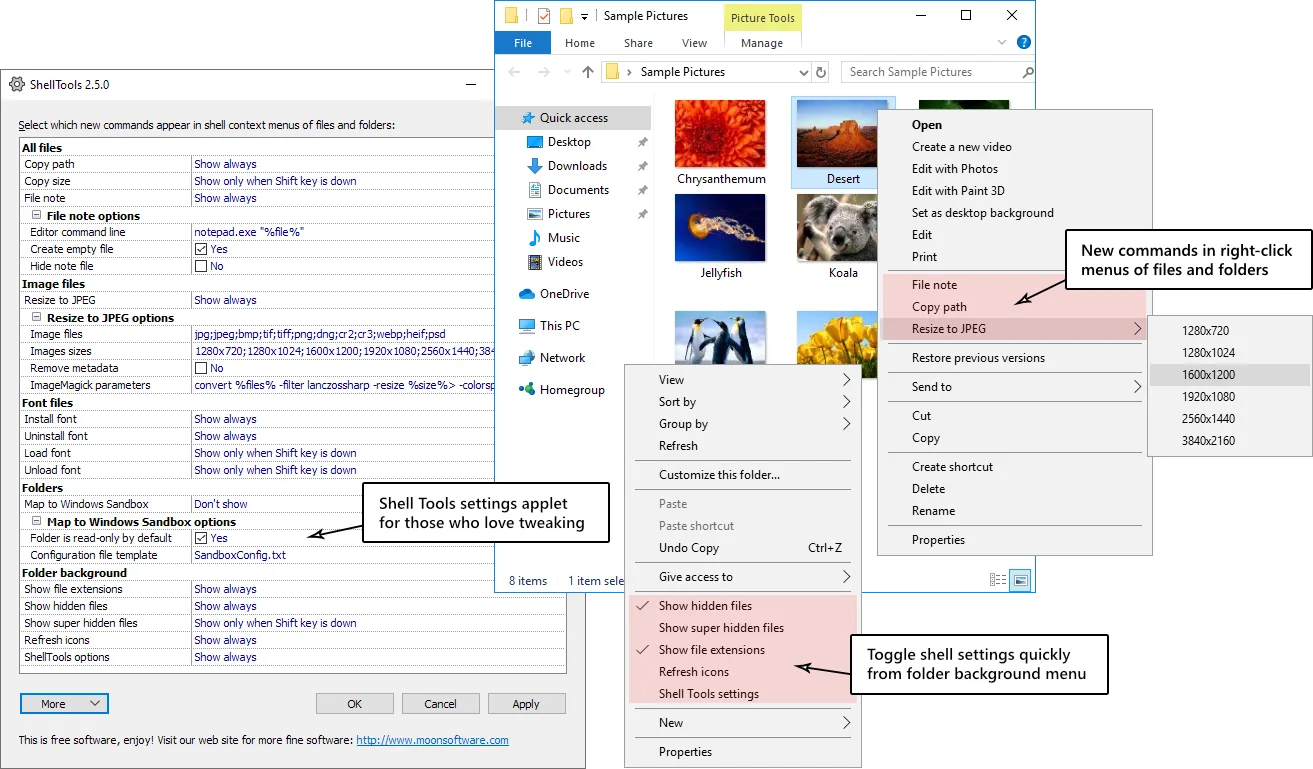
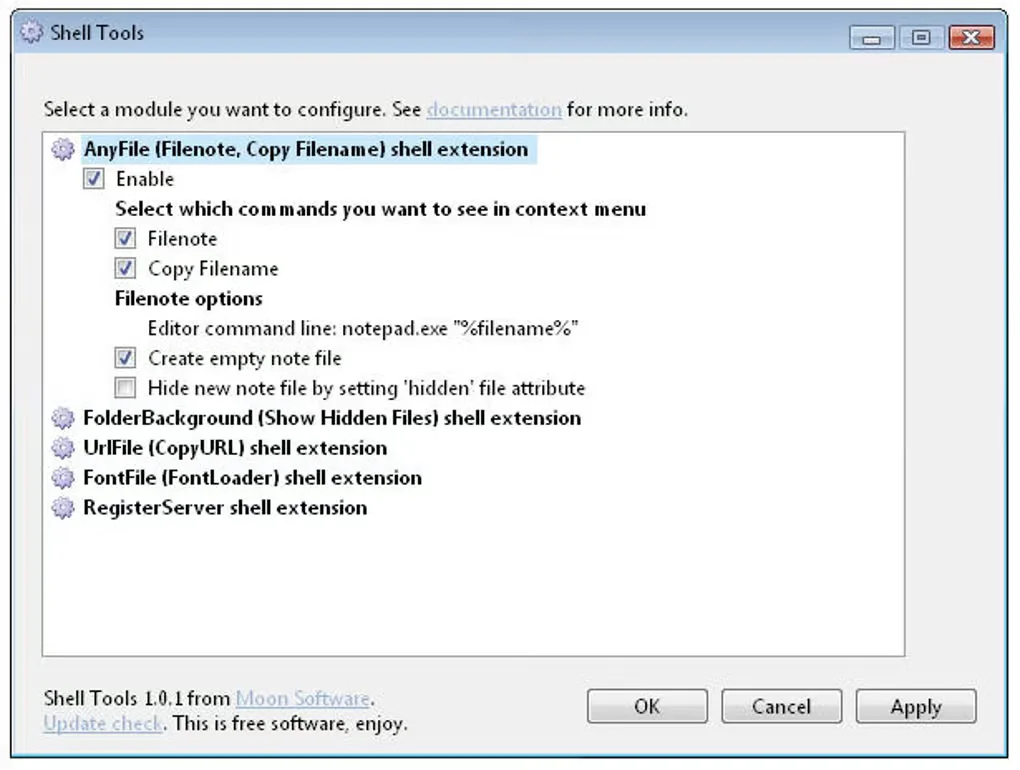
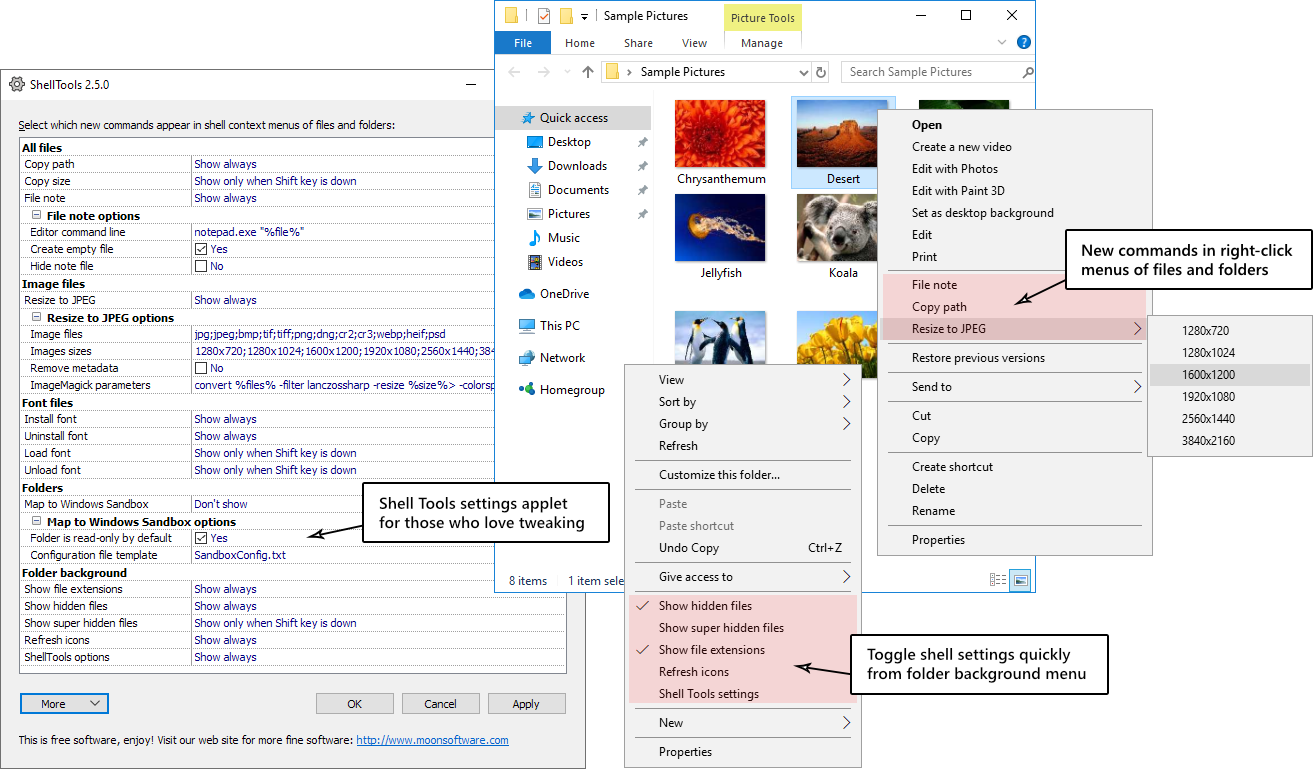
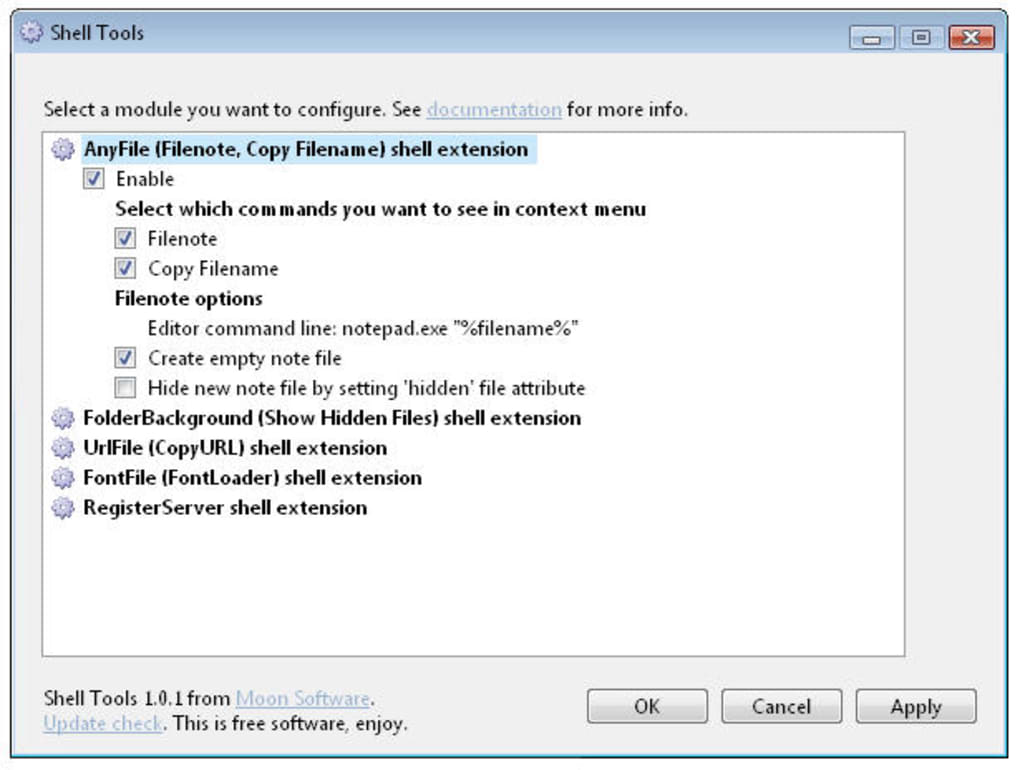
The screenshots are historical interface illustrations, not captures of version 2.6.0: the publisher's annotated image shows 2.5.0, and the Softonic gallery image shows 1.0.1. Version 2.6.0 changes the resize command and how settings are saved.
What it offers
- Create or open a matching text note for a selected file using a configurable editor.
- Copy selected file paths or total file sizes to the clipboard.
- Toggle hidden items, protected operating system items and file name extensions from the folder background menu.
- Install fonts in place or load them temporarily for the current Windows session.
- Configure which context-menu commands appear, including optional image resizing and Windows Sandbox folder mapping.
Good to know
- Image resizing requires a separate installation of ImageMagick 7 or newer; image metadata is kept unless removal is enabled.
- On Windows 11, Shell Tools commands appear in the full context menu reached through Show more options.
- The linked ZIP requires manual setup according to its included Readme; it is not the Microsoft Store package.
- Mapping folders to Windows Sandbox requires Windows Sandbox to be installed separately.
Product images
Sources
References used for this listing. Retrieval dates do not indicate hands-on testing.
- Shell Tools shell extension | Moon Software ↗Retrieved
- Shell Tools version history | Moon Software ↗Retrieved
- Shell Tools - Download ↗Retrieved
More in utilities
View category ↗
1.1.1.1 with WARP 2026.8.2115.0
Encrypt traffic from your Mac to Cloudflare’s network with WARP, or use DNS-only mode for encrypted DNS queries to the 1.1.1.1 resolver.
1.1.1.1 with WARP 2026.8.2115.0
Encrypt traffic between your Windows PC and Cloudflare, or use encrypted DNS only, with the free 1.1.1.1 with WARP app.

3uTools 9.12.005
Manage iPhone and iPad photos, music, apps and backups from Windows with 3uTools, a free utility that also includes device checks and firmware flashing tools.