
Utilities Windows
StartAllBack
Restore a classic Start menu and customize the taskbar, File Explorer and context menus on Windows 11 with StartAllBack.
- Operating system
- Windows 11; version 3.8 lists 23H2/24H2 builds, 3.9.15 adds 25H2, and 3.9.26 adds formal 26H2 support
- Architecture
- Not specified on the official product page
- Download package
- EXE installer via official download dispatcher
Release-history statements are version-specific, not a verified minimum build or CPU support list. StartIsBack++ is the separate Windows 10 product. No local installation or Windows build testing was performed.
Link checked · Download guidance
What is StartAllBack?
StartAllBack customizes the Windows 11 desktop shell: its Start menu, taskbar, Explorer and context menus. Its main purpose is to bring back a more traditional Start menu and taskbar while letting you choose how familiar Windows controls look and behave. Task buttons can show labels, the taskbar can move to another screen edge, and icon spacing can be adjusted. Explorer styling and context-menu changes extend the same approach beyond the Start button.
This is the Windows 11 member of the StartIsBack family. The publisher maintains separate products for Windows 8, 8.1 and 10, so the Windows 7-style appearance is not a statement that this download is for Windows 7. The official page captured on 29 October 2026 lists version 3.9.28, dated 12 October 2026. Its history records explicit support additions and fixes for Windows updates, making the relationship between Windows build and StartAllBack release important.
StartAllBack is commercial software with an evaluation period, not an unrestricted freeware theme. The publisher provides a licence purchase route and describes online activation. Use the original channel for the program and check its current terms rather than interpreting a downloadable installer as a free permanent licence.
What it offers
- Display taskbar button labels and adjust icon size and margins.
- Place the taskbar at the top, left or right screen edge.
- Center task icons while keeping the Start button on the left, or use segmented and translucent styles.
- Use a classic-style Start menu with application launching, system shortcuts and search.
- Restyle Explorer Ribbon or Command Bar, move the details pane to the bottom and extend dark styling to additional dialogs.
- Use rounded acrylic context menus and select taskbar and Start menu styles separately.
Good to know
- Designed for Windows 11; the publisher supplies separate StartIsBack products for older Windows releases.
- Commercial licence with evaluation and online activation; purchasing and activation are handled by the publisher.
- Windows shell updates can require a corresponding StartAllBack update; historic fixes are not a guarantee for every future build.
StartAllBack versus the older StartIsBack editions
Start with your operating system, not the visual style you want. The publisher calls StartAllBack its Windows 11 edition; StartIsBack++ serves Windows 10, while StartIsBack and StartIsBack+ are tailored to Windows 8 and 8.1. A Windows 7-style taskbar is an appearance option, not a Windows 7 system requirement.
That distinction matters when following an older guide. A guide written for StartIsBack++ can describe a similar-looking menu while linking a different program. The download on this page is the official StartAllBack dispatcher, whose retained HEAD response identified the 3.9.28 EXE without transferring its body.
Choose the taskbar behavior you actually miss
The clearest reason to use StartAllBack is a concrete taskbar preference: readable task labels, a vertical edge position, smaller or larger icons, or more control over spacing. The official feature list also includes centering icons without moving the Start button and splitting the bar into translucent segments. These are distinct choices, not a requirement to adopt one complete retro preset.
The publisher says Start menu and taskbar styles can be selected separately. That makes it reasonable to choose the part you need rather than treating the application as an all-or-nothing theme pack. Configuration is opened through Properties on the Start button or opened Start menu, according to the family FAQ.
For a focused setup, start with one taskbar change from that list: labels if you want text beside icons, an edge position if you want a side taskbar, or icon margins if spacing is the problem. Open Properties by right-clicking the Start button or the opened Start menu, then choose the taskbar and menu styles separately. This is a suggested way to use the documented controls, not a claim that a particular preset was installed or tested here.
What changes beyond the Start menu
Explorer-related options include a restyled Ribbon and Command Bar, a bottom details pane and the older search-box style. The publisher also lists extended dark-mode coverage for dialogs and new rounded acrylic context menus. Those controls affect the Windows shell itself; they are not another independent file manager.
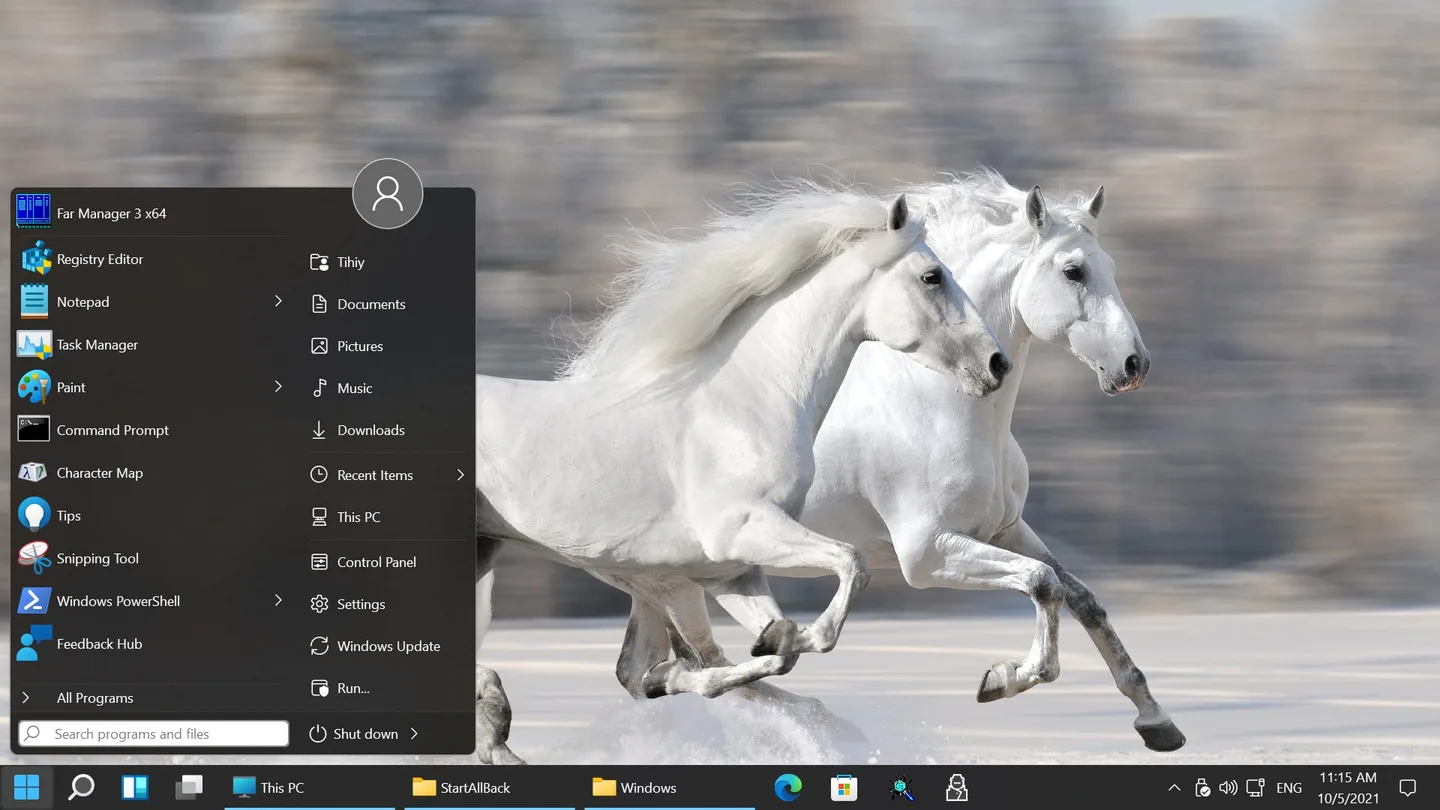
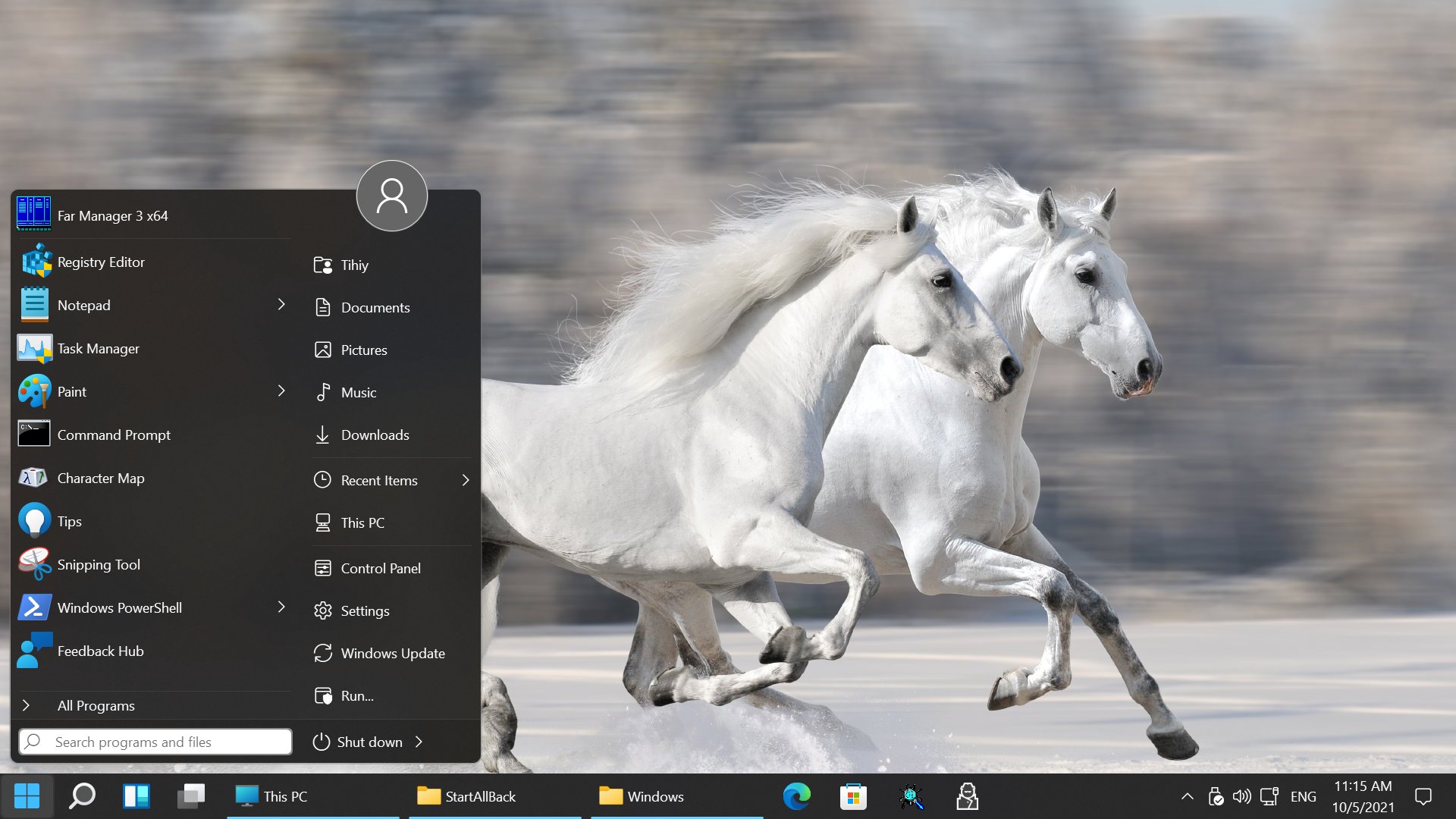
The retained publisher screenshot shows a classic two-column menu, a search field, system shortcuts and labeled taskbar buttons against a horses wallpaper. Its taskbar clock shows 5 October 2021. It illustrates the interface direction, not the appearance of version 3.9.28 or every feature in that release; it was not produced by installing the program for this entry.
Read release history before matching a Windows build
The retained official history lists support for the then-current 23H2/24H2 builds in 3.8 on 31 July 2024, 25H2 support in 3.9.15 on 4 September 2025, and formal 26H2 support in 3.9.26 on 21 September 2026. Version 3.9.27 then fixes dark mode with 26H2 features, followed by 3.9.28 improvements and fixes on 12 October 2026. These are version-specific release notes, not a complete minimum-build matrix or blanket support for every Insider image.
For a machine whose shell changed after an update, compare the Windows release with the publisher’s current notes rather than copying an old package number from a screenshot. No Windows installation, upgrade, performance measurement or compatibility test was carried out for this entry.
Use the publisher route and read the licence
The official site exposes both its download link and a machine-scope WinGet command: winget install StartIsBack.StartAllBack --scope machine. This entry links the original download dispatcher. Its retained HEAD-only check followed the publisher redirect to StartAllBack_3.9.28_setup.exe with application/octet-stream; that is package identity evidence, not a malware assessment.
A licence is purchased through the publisher’s linked StartIsBack site, and activation is online. The shared family FAQ and StartAllBack version history contain different trial-duration statements, so this entry deliberately does not promise an exact evaluation length. The current installer and purchase terms, not an old review, determine the applicable licence.
Publisher-documented disable and uninstall paths
The official family FAQ explicitly names StartIsBack/StartAllBack in its recovery advice: hold Escape while logging in to disable all functionality when an older application version has problems after a Windows update. This is a publisher-documented escape route, not a recovery operation tested here.
For removal, the same FAQ directs users to Control Panel, Programs and Features, then Uninstall. Its wording says to find StartIsBack even though the question covers both products; use the installed product entry rather than deleting unrelated Windows shell files. No manual DLL replacement, security-setting change or unofficial repair script is prescribed.
Product images
Sources
References used for this listing. Retrieval dates do not indicate hands-on testing.
More in utilities
View category ↗
1.1.1.1 with WARP 2026.8.2115.0
Encrypt traffic from your Mac to Cloudflare’s network with WARP, or use DNS-only mode for encrypted DNS queries to the 1.1.1.1 resolver.
1.1.1.1 with WARP 2026.8.2115.0
Encrypt traffic between your Windows PC and Cloudflare, or use encrypted DNS only, with the free 1.1.1.1 with WARP app.

3uTools 9.12.005
Manage iPhone and iPad photos, music, apps and backups from Windows with 3uTools, a free utility that also includes device checks and firmware flashing tools.