
Utilities Windows
ThinLinc Client
Access a Linux desktop from Windows with the free ThinLinc Client. Connect to an existing ThinLinc server, resume remote sessions and switch between windowed and full-screen views.
- Operating system
- Windows 10 or later; Windows Server 2016 or later
- Architecture
- Intel/AMD x64
- Download package
- EXE installer
Publisher requirements apply to the native Windows client. This link is the standalone client installer, not the client bundle or Linux server.
Link checked · Download guidance
What is ThinLinc Client?
ThinLinc Client is the Windows endpoint for a ThinLinc remote desktop installation. It connects to a server that provides the graphical desktop, rather than setting up a Linux desktop on your PC. This makes it useful when an employer, university or home lab already has a ThinLinc server available.
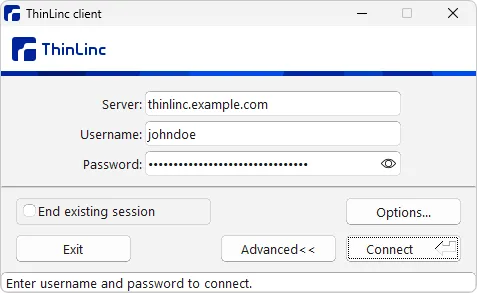
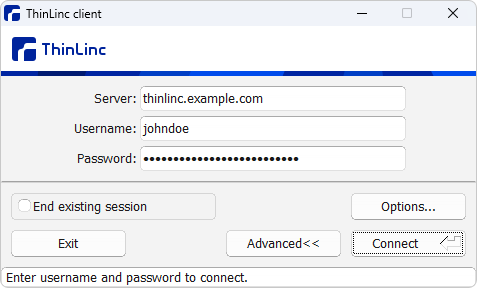
Start the client, enter the server address and username, and supply the authentication information required by that server. Password, public-key and smart-card login workflows are described in the publisher documentation. Depending on the server and client settings, connecting can start a new session, resume an existing one or present a session selector. Disconnecting without logging out leaves the session running on the server so you can reconnect later.
The client software is free of charge, but it cannot be used without a ThinLinc server and an authorized account. Server licensing is separate: the publisher describes three concurrent sessions out of the box, a community license file for up to ten free concurrent users under its conditions, and paid licensing beyond that. The linked package is the Windows Intel/AMD x64 EXE installer, not a server package or the all-platform client bundle.
What it offers
- Connect from Windows to a graphical session on a ThinLinc server.
- Authenticate using a password, public key or smart card, as configured for the server.
- Resume a remote session after disconnecting without logging out.
- Select an available session when the client and server configuration permits it.
- Toggle full-screen mode through the session menu; the default menu key is F8.
Good to know
- Requires a configured ThinLinc server, its address and an authorized user account; installing the client alone does not provide a remote desktop.
- Free client distribution does not remove server concurrent-user license requirements.
- This selected installer is for Intel/AMD x64 Windows; no Windows ARM installer is listed in the publisher download table.
Product images
Sources
References used for this listing. Retrieval dates do not indicate hands-on testing.
More in utilities
View category ↗
Xpra
Use remote graphical applications on your Windows desktop with Xpra, an open-source tool that keeps applications running when you disconnect and reconnect.

WinSCP 6.7
Transfer files between your PC and a server with WinSCP, a free Windows SFTP, FTP, WebDAV and S3 client with directory synchronization and scripting.
Filius 2.14
Design small computer networks and explore how messages travel with Filius, a free network simulator for classroom learning. The Windows installer includes Java.

RustDesk 1.5.0
Control a remote computer with RustDesk, an open-source remote desktop client that works with public servers or your own self-hosted server.

Deskflow 1.27.0
Share one keyboard and mouse across nearby computers with Deskflow, a free, open-source utility with clipboard sharing and TLS encryption enabled by default.