
Utilities Windows
Twinkle Tray
Adjust compatible monitor brightness from the Windows system tray with Twinkle Tray, a free utility for controlling one display or several together.
Version 1.17.2 · Direct publisher file
Link checked · Download guidance
What is Twinkle Tray?
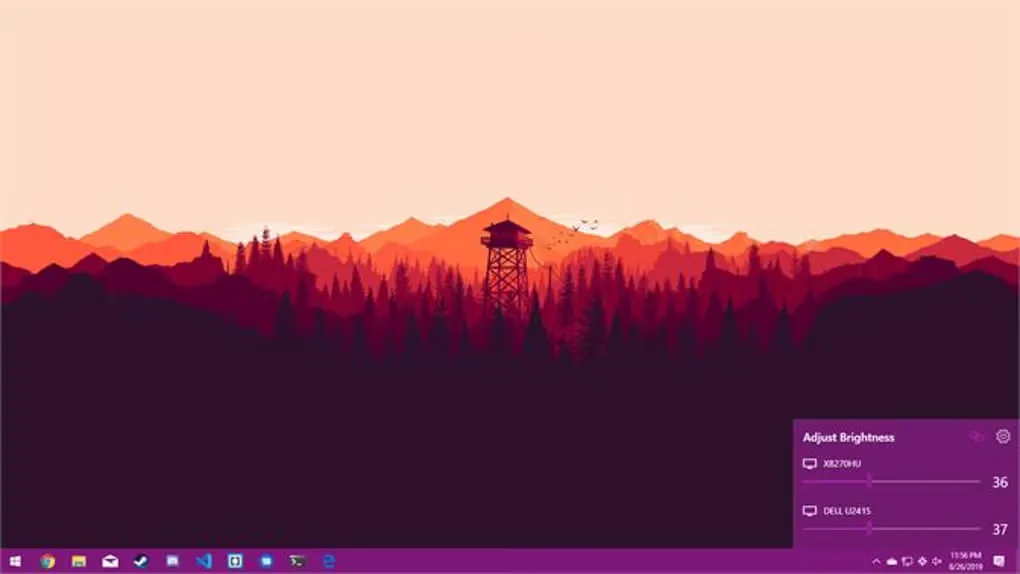
Twinkle Tray puts brightness sliders in the Windows 10 and 11 system tray, giving you a convenient place to adjust compatible external monitors without reaching for their physical buttons. You can change displays individually or together, set brightness hotkeys, and schedule adjustments by time of day or when the computer is idle. Brightness normalization helps align the adjustment range across different monitors.
Monitor support matters more than the number of screens. Twinkle Tray communicates through DDC/CI and WMI; DDC/CI may need to be enabled in a monitor's own menu. The publisher warns that some VGA/DVI connections and USB, Thunderbolt or Surface docks may not work. Some monitors can also behave poorly when their DDC/CI features are controlled.
The linked EXE is the publisher's v1.17.2 installer, the version offered on its homepage when checked. Softonic lists a different version, so this entry identifies the verified package rather than claiming it is the newest release. The screenshot shows the brightness flyout on a Windows desktop; its appearance is illustrative, not a test of the linked installer.
What it offers
- Adjust compatible monitors individually or together from system-tray brightness sliders.
- Assign brightness hotkeys to a specific display or all displays.
- Schedule brightness changes by time of day or when idle.
- Normalize brightness adjustments across different monitors.
- Match the Windows 10 or Windows 11 style and choose a preferred theme.
Good to know
- Brightness control depends on compatible monitor support; DDC/CI may need enabling in the monitor menu.
- Some VGA/DVI connections and USB, Thunderbolt or Surface docks may not be compatible; certain monitors can behave poorly with DDC/CI controls.
Product images
Sources
References used for this listing. Retrieval dates do not indicate hands-on testing.
More in utilities
View category ↗
1.1.1.1 with WARP 2026.8.2115.0
Encrypt traffic from your Mac to Cloudflare’s network with WARP, or use DNS-only mode for encrypted DNS queries to the 1.1.1.1 resolver.
1.1.1.1 with WARP 2026.8.2115.0
Encrypt traffic between your Windows PC and Cloudflare, or use encrypted DNS only, with the free 1.1.1.1 with WARP app.

3uTools 9.12.005
Manage iPhone and iPad photos, music, apps and backups from Windows with 3uTools, a free utility that also includes device checks and firmware flashing tools.