

Utilities Windows
Ventoy for Windows
Create a multiboot USB drive with Ventoy, then copy Windows, Linux or recovery images onto it and choose an image from a boot menu.
- Operating system
- Windows; standard tool supports 32-bit and 64-bit Intel/AMD PCs
- Architecture
- x86 tool; x64, ARM and ARM64 alternatives included
- Download package
- ZIP archive containing Ventoy2Disk
Extract before use. Move an alternative executable from altexe to the main folder if needed. Initial USB installation erases data; this package is not a Windows OS image.
Link checked · Download guidance
What is Ventoy?
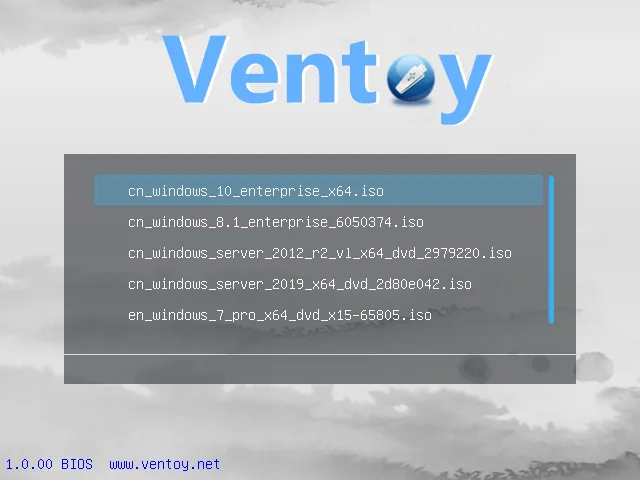
Ventoy prepares a USB drive to boot multiple operating-system and recovery images. After the initial setup, copy image files into folders on the drive rather than rewriting it for each image. A boot menu lets you choose which image to start, making one USB drive useful for several installation or recovery tasks.
The Windows download is a ZIP archive containing Ventoy2Disk, not a Windows installation image. Extract it before using the tool. The standard Ventoy2Disk.exe runs on 32-bit and 64-bit Intel/AMD Windows PCs; alternative x64, ARM and ARM64 executables are included in the altexe folder and must be moved beside the standard executable before use. These are host-tool architectures, separate from the firmware and operating-system images the USB drive can boot.
Back up the selected USB drive first: a normal initial installation formats it and erases its data. Adding images afterward does not require repeating that installation. Secure Boot needs additional care: the publisher documents machine-specific firmware and key-enrollment steps, and its default Ventoy policy bypasses EFI signature checks rather than preserving the usual Secure Boot verification policy.
What it offers
- Keep multiple boot images in folders and select one from a boot menu.
- Boot supported ISO, WIM, IMG, VHD(x) and EFI images without extracting them.
- Prepare drives with MBR or GPT partition layouts for supported Legacy BIOS and UEFI firmware.
- Add or replace image files by copying them onto an already prepared Ventoy drive.
Good to know
- A normal initial installation formats the selected drive and deletes its data; back it up and check the target device first.
- Secure Boot setup is machine-dependent and does not work on every computer. Ventoy's default policy bypasses EFI signature checks; preserving UEFI verification policy requires separate configuration.
Product images
Sources
References used for this listing. Retrieval dates do not indicate hands-on testing.
- Softonic — indexed discovery only ↗Retrieved
- Ventoy — official downloads ↗Retrieved
- Ventoy — purpose and features ↗Retrieved
- Ventoy — getting started and Windows host architectures ↗Retrieved
- Ventoy — license ↗Retrieved
- Ventoy — UEFI Secure Boot caveats ↗Retrieved
- Ventoy — publisher GitHub release metadata ↗Retrieved
- Ventoy — publisher screenshot gallery (historical boot menu) ↗Retrieved
More in utilities
View category ↗
1.1.1.1 with WARP 2026.8.2115.0
Encrypt traffic from your Mac to Cloudflare’s network with WARP, or use DNS-only mode for encrypted DNS queries to the 1.1.1.1 resolver.
1.1.1.1 with WARP 2026.8.2115.0
Encrypt traffic between your Windows PC and Cloudflare, or use encrypted DNS only, with the free 1.1.1.1 with WARP app.

3uTools 9.12.005
Manage iPhone and iPad photos, music, apps and backups from Windows with 3uTools, a free utility that also includes device checks and firmware flashing tools.