

Utilities Windows
Wallpaper Engine for Windows
Run animated scenes, videos and web wallpapers on Windows, organize playlists and create your own backgrounds with Wallpaper Engine. The Windows app is a paid, one-time purchase through Steam.
- Operating system
- Windows 10 and Windows 11
- Architecture
- 32-bit and 64-bit modes; UI and web wallpapers use 32-bit executables
- Download package
- Steam-distributed Windows application
Windows 10/11; DirectX 11, 1024 MB RAM and 512 MB storage minimum. Windows N needs Media Feature Pack. Windows 7/8 support ended with 2.5; legacy 2.4 is a separate Steam branch. No exact Windows build or native ARM support is established.
This opens the official acquisition page, not a verified installer file.
Publisher page reviewed · Download guidance
What is Wallpaper Engine?
Wallpaper Engine turns the Windows desktop into a live wallpaper surface. It supports animated 2D and 3D scenes, videos, websites and certain applications, with multi-monitor and ultrawide display support. You can choose community wallpapers through Steam Workshop or build a scene in the included editor.
It is useful for both choosing a moving background and creating one: the editor can animate still images with assets, particles and custom SceneScript behavior. Wallpaper selection, playlists and performance rules are separate concerns, so a visually complex desktop does not have to remain active while you work or play.
The Windows product is commercial software with a one-time purchase, not the free Android companion app. The button opens its official Steam store page; it is not a verified standalone installer. Publisher requirements list Windows 10 and Windows 11. No application was installed or benchmarked for this entry.
What it offers
- Play animated 2D/3D scenes, videos, websites and supported application wallpapers.
- Use ultrawide displays and multi-monitor layouts.
- Create wallpaper playlists with interval, time-of-day, sign-in or application triggers.
- Animate still images with the included scene, particle and SceneScript tools.
- Pause or stop wallpapers for games, maximized apps and battery use.
- Download and share free community wallpapers through Steam Workshop.
Good to know
- The Windows application requires purchase; the free Android companion does not replace it.
- Steam is required for Workshop downloads/uploads and application updates, though core wallpaper playback can run without Steam in the background.
- Website and application wallpapers can use more resources than scenes or videos; no measured resource or gaming-performance guarantee is provided here.
- Editor-made scenes cannot be exported directly as GIF or video files.
- The current branch is not for Windows 7 or 8; the publisher offers an outdated 2.4 compatibility branch through Steam.
Choose a wallpaper or create a scene
Wallpaper Engine has two useful entry points. If you want a finished background, browse community work through Steam Workshop and select a wallpaper that suits your displays. If you want to animate your own image, use the included editor rather than treating the app as only a video player. Local video and HTML content are also supported, so Workshop is not the only source of wallpaper content.
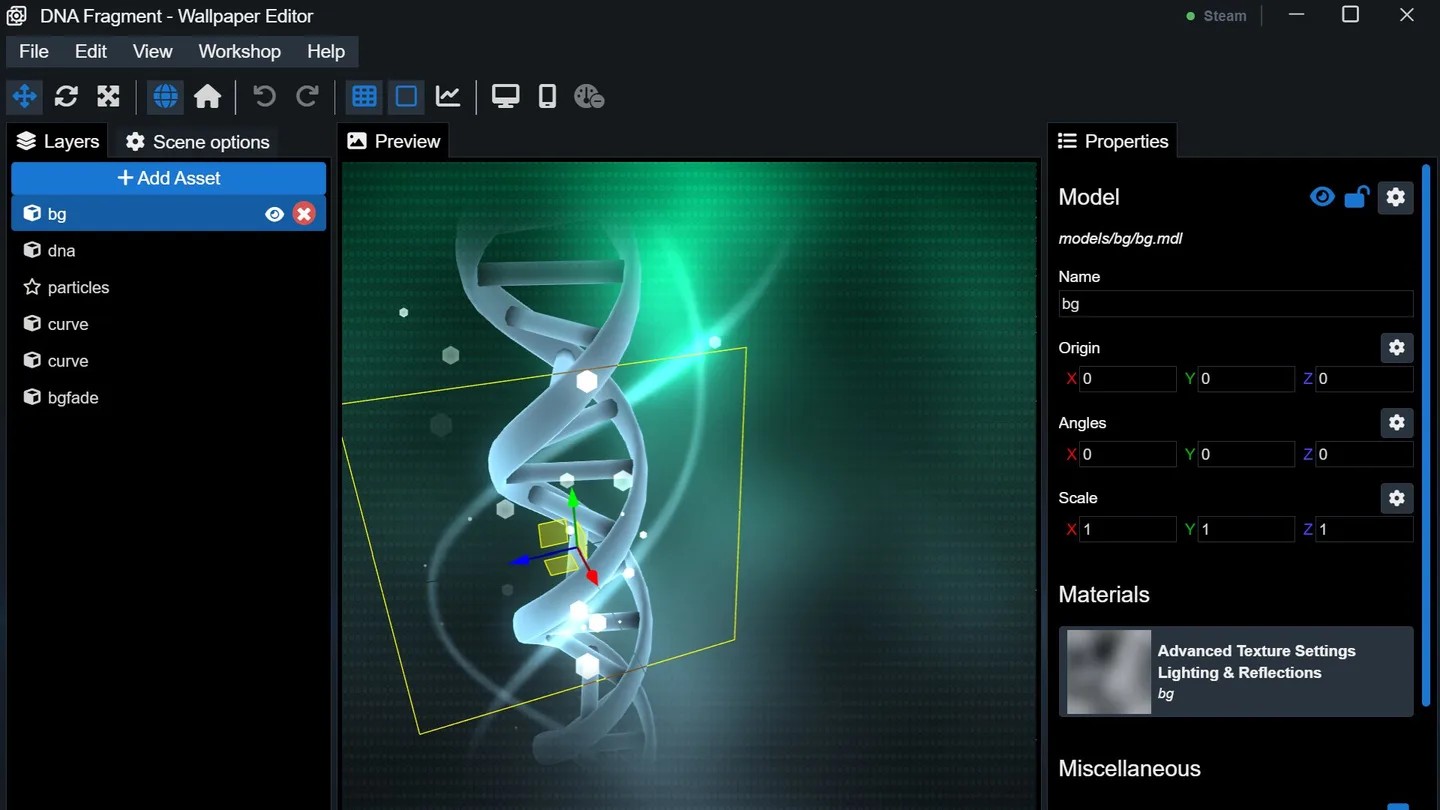
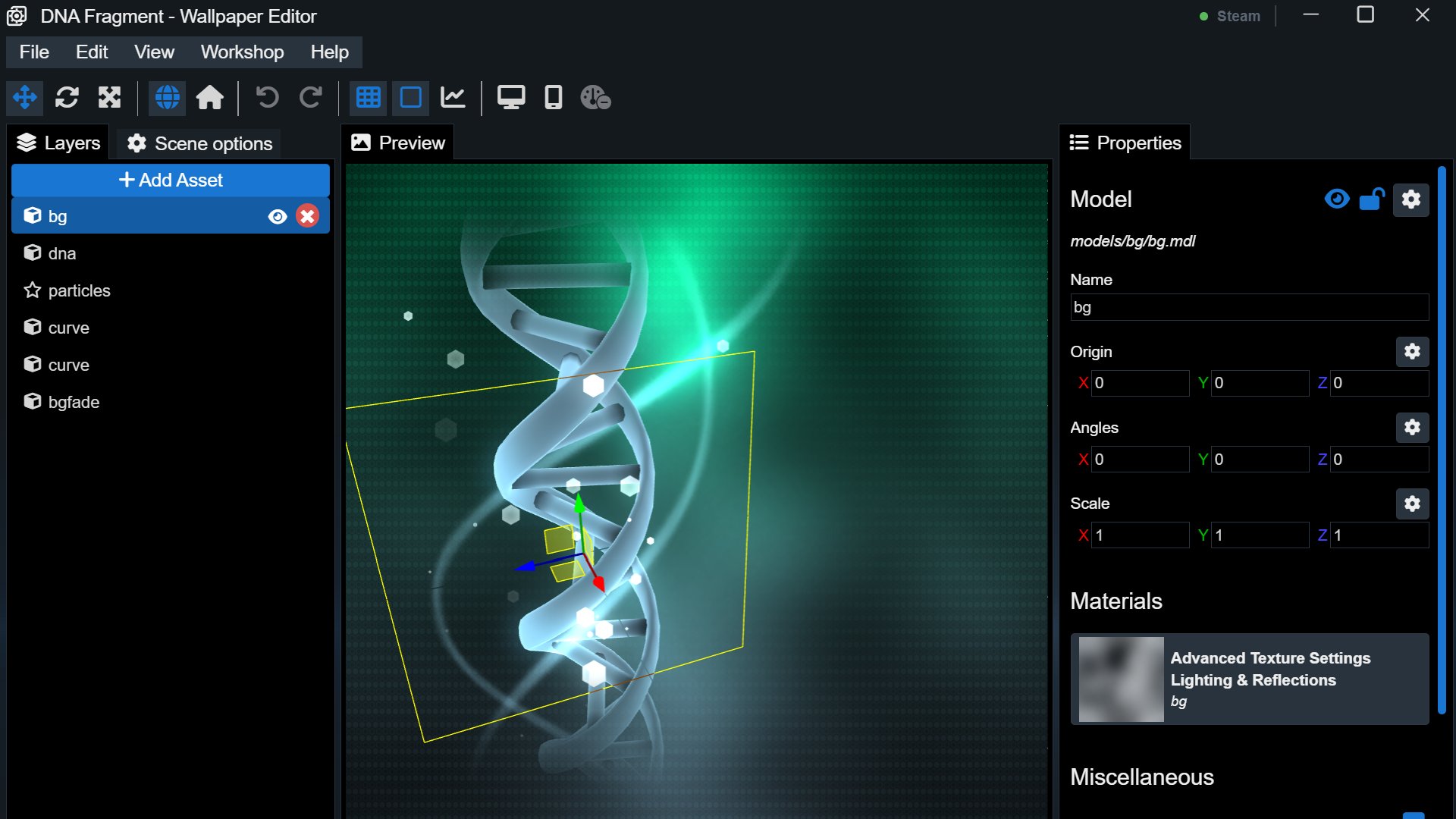
A scene can contain layers, ready-to-use assets, particle effects and configurable properties for its users. SceneScript adds custom behavior to individual elements. These are creation tools, not a promise that every community wallpaper exposes the same controls. The screenshot illustrates the editor with a DNA scene; it does not establish an installed release version.
Plan displays and wallpaper changes
Multi-monitor and ultrawide support make the application relevant beyond a single standard desktop screen. Wallpaper playlists can change the active background at intervals or at particular times of day. The official site also describes sign-in and application-launch triggers. These controls suit an arrangement that changes through the day without manually choosing a background each time.
Wallpaper Engine can also display a wallpaper as a Windows screensaver. The desktop wallpaper and idle-screen use cases are related, but neither should be confused with exporting an animation for use in another program.
Use pause rules instead of assuming zero impact
The publisher supplies application-specific rules and automatic pausing for games or maximized apps. On a laptop, battery-based pausing is another available control. Stopping a wallpaper is different from leaving its animation active behind a game: the official site says stopping unloads the wallpaper from memory.
Content still matters. Steam describes website and application wallpapers as generally more resource-intensive than scenes and videos. Start with content appropriate for your hardware and configure the pause or stop behavior around your actual applications. This entry reports controls and publisher guidance, not a measured CPU, GPU, frame-rate or battery result.
Understand the purchase and Windows requirements
The Windows app is sold through Steam as a one-time purchase. Free Workshop subscriptions refer to individual wallpapers, not a free Windows application license. The separate Android app is free and can receive supported wallpapers from the Windows computer; it is not an alternative Windows installer.
Current publisher pages list Windows 10 and Windows 11. The Steam minimum also includes DirectX 11 and the Microsoft Media Feature Pack for Windows N editions. Steam is needed for updates and Workshop transfers, while existing core wallpaper functionality can work without Steam running in the background. The official acquisition button here opens the store page, with purchase and installation handled there.
Install through Steam and undo automatic startup
Use the official Steam product page linked here to purchase the Windows app and install it through Steam. This page does not supply a standalone EXE or claim a checked binary download. After installation, choose a wallpaper or open the editor; enabling startup with Windows is a separate choice, not a requirement for trying a background.
For automatic startup, open Wallpaper Engine settings and use the option at the top of the General tab. Normal startup avoids adding the high-priority Windows service. The publisher says high priority changes startup ordering, not wallpaper performance; do not select it expecting higher frame rates.
To undo startup behavior, switch off automatic startup in General. To close the running application, right-click its Windows tray icon and select Quit. For removal, the publisher instructs you to disable automatic startup first, then right-click Wallpaper Engine in Steam and choose Manage, then Uninstall. Its full-reset guide additionally deletes the remaining application directory and can clear Workshop subscriptions; those are destructive reset steps, not necessary instructions for merely stopping a wallpaper. Preserve your own projects before any full reset.
Distinguish Windows support from 32-bit and 64-bit modes
The current product and Steam requirements name Windows 10 and Windows 11 without a specific minimum Windows build number. The published minimum is a 1.66 GHz Intel i5 or equivalent, 1024 MB RAM, HD Graphics 4000 or above, DirectX 11 and 512 MB available storage. These are publisher requirements, not measured capacity for every community wallpaper. Windows N editions also need Microsoft’s Media Feature Pack.
The publisher recommends the 64-bit mode for larger files above 2 GB and says the two modes otherwise provide the same visual fidelity and performance. The mode choice applies to scene and video wallpapers; web wallpapers and the user interface still use 32-bit executables. A 64-bit launch option is therefore not evidence that every component is 64-bit or that native Windows ARM support exists.
Windows 7 and Windows 8 support ended with Wallpaper Engine 2.5. The support guide describes a separate, outdated 2.4 branch selected in Steam Properties, Betas, under Windows 7 support. That branch is a legacy compatibility option, not a reason to advertise current Windows 7/8 support. No current application version or release date is inferred from this historical branch documentation.
Know the scene export limitation
An editor-created wallpaper behaves more like an interactive scene than a fixed video clip: it may contain randomness and have no natural beginning or end. The publisher therefore does not offer direct GIF or video export of these scenes. If a reusable recording is your actual goal, the support guide describes playing the wallpaper in its own window and using an external recorder. A seamless loop is not guaranteed.
For a recording rather than a live desktop, the publisher suggests ScreenToGif for a simpler capture workflow or OBS Studio for more advanced recording features. First right-click the wallpaper in the Installed tab and select Play in Window to isolate and resize it. These are alternatives for recording the scene, not replacements for Wallpaper Engine’s desktop playback or proof that a seamless loop can be produced.
Product images
Sources
References used for this listing. Retrieval dates do not indicate hands-on testing.
- Wallpaper Engine — official product and purchase information ↗Retrieved
- Wallpaper Engine on Steam — official paid distribution ↗Retrieved
- Wallpaper Engine — exporting scenes ↗Retrieved
- Automatic start-up at boot | Wallpaper Engine ↗Retrieved
- 32-Bit & 64-Bit Version | Wallpaper Engine ↗Retrieved
- Reverting to an older version of Wallpaper Engine ↗Retrieved
- Fully Resetting Wallpaper Engine ↗Retrieved
More in utilities
View category ↗
1.1.1.1 with WARP 2026.8.2115.0
Encrypt traffic from your Mac to Cloudflare’s network with WARP, or use DNS-only mode for encrypted DNS queries to the 1.1.1.1 resolver.
1.1.1.1 with WARP 2026.8.2115.0
Encrypt traffic between your Windows PC and Cloudflare, or use encrypted DNS only, with the free 1.1.1.1 with WARP app.

3uTools 9.12.005
Manage iPhone and iPad photos, music, apps and backups from Windows with 3uTools, a free utility that also includes device checks and firmware flashing tools.