
Multimedia & graphics Windows
Any Video Recorder
Record desktop activity with Any Video Recorder, a free Windows screen recorder with manual capture-area selection and frame-rate and bitrate controls.
- Operating system
- Windows XP, Vista, 7, 8 and 10, as listed by the publisher
- Architecture
- Not specified in the inspected publisher sources
- Download package
- EXE installer
Windows 11 support is not established. Softonic lists version 1.0.4; the downloaded package's embedded version was not inspected because no installer body was fetched.
Link checked · Download guidance
What is Any Video Recorder?
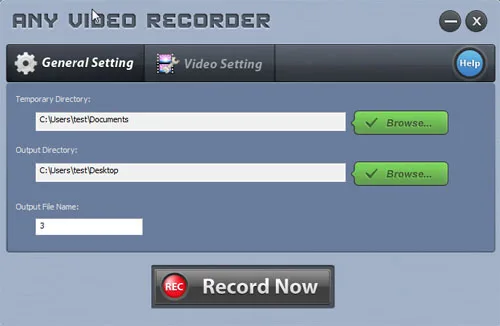
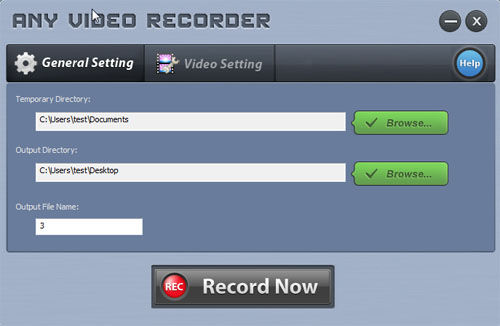
Any Video Recorder captures activity displayed on a Windows desktop. Its publisher describes it as freeware and provides a workflow for recording a selected area or the full screen, making it an option for recording a demonstration or instructions. The General Setting panel lets you choose temporary and output folders and an output file name; Video Setting provides frame-rate and bitrate controls.
The publisher's guide starts with Record Now to detect a video area. Select Manually lets you adjust the red frame to the area you want, including the whole screen. The guide documents Ctrl+F7 for starting and stopping a recording, with the output folder opening when recording finishes. These are documented controls, not results from an installation or recording test.
Compatibility needs care: the publisher lists Windows XP, Vista, 7, 8 and 10, but does not establish Windows 11 support. Its older claims about recording particular streaming services are not proof that those services work with the software today. This entry does not promise protected-video capture or lossless recording. Softonic lists version 1.0.4; the publisher-linked EXE was checked with HEAD only, so its embedded version and architecture have not been inspected.
What it offers
- Record a selected desktop area or the full screen using the publisher's documented manual selection workflow.
- Choose temporary and output directories and an output file name in General Setting.
- Adjust target frame rate and video bitrate in Video Setting.
- Use Ctrl+F7 to start or stop recording; the publisher says the output folder opens after recording finishes.
Good to know
- The publisher lists Windows versions only through Windows 10; Windows 11 compatibility is not established.
- Current compatibility with named streaming services and protected video is not established by the inspected documentation.
- No installation or recording test was performed, and the publisher-linked EXE's architecture and embedded version remain unverified.
Product images
Sources
References used for this listing. Retrieval dates do not indicate hands-on testing.
More in multimedia & graphics
View category ↗ChrisPC Screen Recorder 2.26.0810
Record a Windows screen, window or selected area to MP4 with desktop or microphone audio. The free edition is for non-commercial use and limits recordings to 10 minutes.
Tipard Video Converter Ultimate
Convert video and audio, trim clips and rip DVDs with Tipard Video Converter Ultimate for Windows. Commercial software with a trial download.

VideoProc Converter AI
Convert and compress video, upscale footage with AI, and record your screen with VideoProc Converter AI for Windows. The free trial has export limits; full use requires a paid license.
ThunderSoft GIF Converter 5.7.1
Convert GIFs to video or image sequences, reverse animations, join files and make GIFs from pictures with this six-tool Windows suite. A paid license is offered alongside a trial download.

Jubler 10.0.0
Create, retime and convert text-based subtitles with Jubler, a free, open-source editor for Windows. Video preview and audio waveforms require VLC.