
Utilities Windows
OpenWithView
Hide unused applications from the Windows Open With dialog and restore them when needed with NirSoft's portable freeware utility.
- Operating system
- Windows XP, Windows Server 2003 and Windows Vista; Windows 7/x64 icon fix documented
- Architecture
- Not specified for the linked package
- Download package
- ZIP archive containing a standalone executable
Windows 10/11 support is unconfirmed. The publisher says earlier Windows versions display entries but cannot enable or disable them.
Link checked · Download guidance
What is OpenWithView?
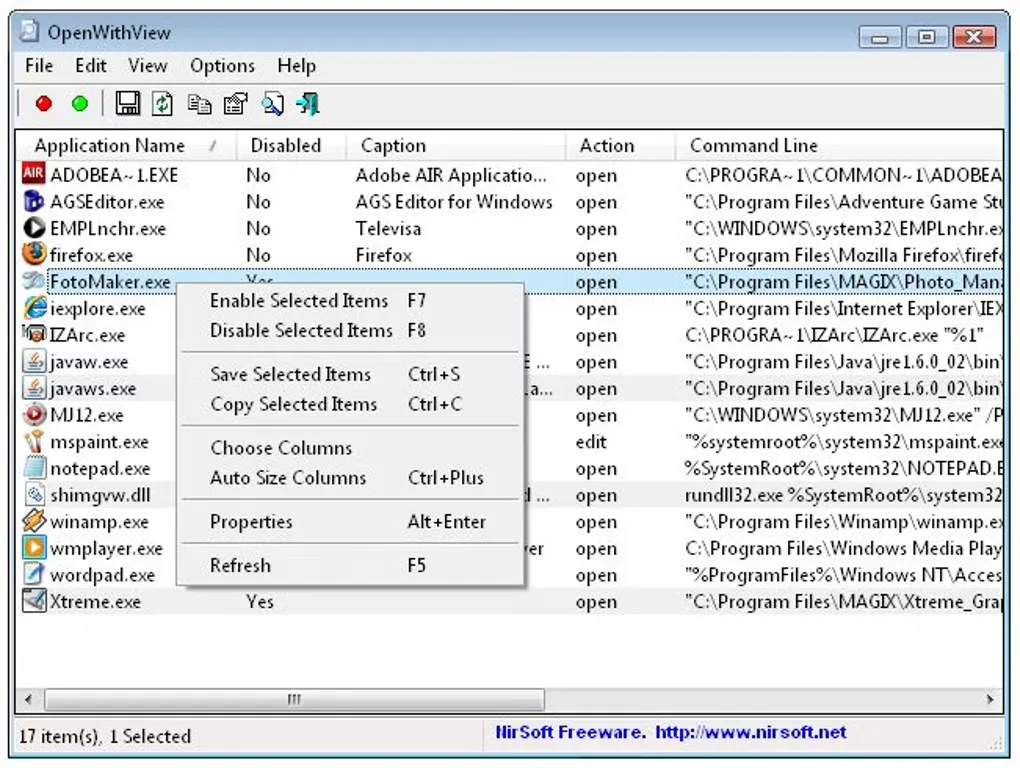
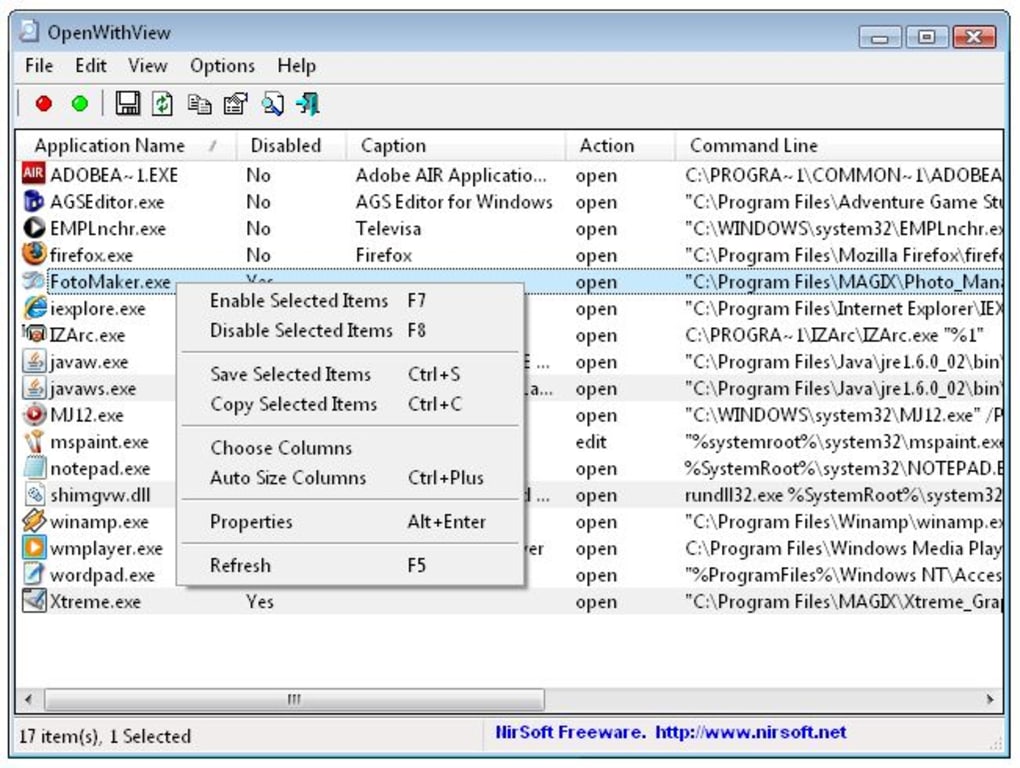
OpenWithView lists the applications available in the Windows Open With dialog so you can disable entries you rarely use. Disabled applications disappear from the dialog's Other Programs section. The utility is useful for reducing an overcrowded list rather than adding new applications or rearranging their order.
The publisher documents a reversible workflow: select one or more entries, press F8 to disable them, and use F7 to enable them again. OpenWithView runs from OpenWithView.exe without an installation process or additional DLL files. It also supports saving the list as a comma-delimited file and displaying product name, description, version and company information.
Compatibility needs care. NirSoft explicitly lists Windows XP, Windows Server 2003 and Windows Vista, and the version 1.11 notes mention an icon fix for Windows 7/x64. These statements do not establish support for Windows 10 or 11, or identify the package's CPU architecture. On Windows versions earlier than XP, the publisher says entries can be viewed but not enabled or disabled.
What it offers
- List applications available in the Windows Open With dialog.
- Disable one or more selected entries with F8 and restore disabled entries with F7.
- Run the executable without an installer or additional DLL files.
- Save application entries as a comma-delimited file.
- Display product name, description, version and company information.
Good to know
- The publisher's requirements list XP, Server 2003 and Vista; a Windows 7/x64 icon fix is documented, but Windows 10/11 compatibility is not established by these sources.
- On Windows versions earlier than XP, entries are viewable but the enable/disable feature does not work.
- The utility does not add new applications to the list or rearrange its order, according to Softonic's product review.
Product images
Sources
References used for this listing. Retrieval dates do not indicate hands-on testing.
More in utilities
View category ↗
FileTypesMan 2.01
View registered file extensions and edit their properties and right-click actions with FileTypesMan, a portable freeware utility for Windows.

Stickies 10.2a
Keep text and image notes on your Windows desktop with Stickies, a freeware app with alarms, recurring reminders and customizable note styles.
StartAllBack 3.9.28
Restore a classic Start menu and customize the taskbar, File Explorer and context menus on Windows 11 with StartAllBack.

Total Uninstall 7.6.2
Analyze installed Windows programs or monitor new installations with Total Uninstall. This download is the Professional edition with a 30-day evaluation.

HiddeX 2.5 build 22
Hide selected Windows applications from the desktop and taskbar without closing them. HiddeX is a portable freeware utility with keyboard and mouse shortcuts.