
Utilities Windows
QuickSetDNS
Switch a Windows network adapter between saved DNS server configurations or automatic DNS with QuickSetDNS, a portable freeware utility from NirSoft.
- Operating system
- Windows 2000 through Windows 11, according to the publisher
- Architecture
- 32-bit and 64-bit Windows supported
- Download package
- ZIP archive containing a portable executable
Publisher lists Windows compatibility but does not identify a native ARM64 build. No installation process or additional DLL files required.
Link checked · Download guidance
What is QuickSetDNS?
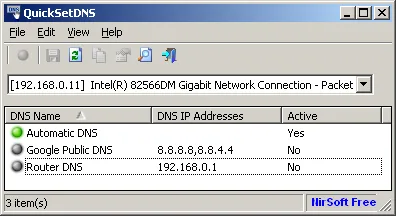
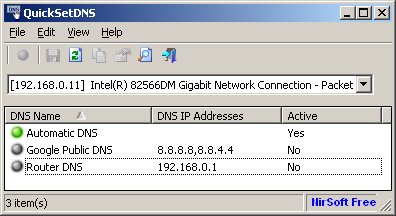
QuickSetDNS lets you keep named DNS server configurations and apply one to a Windows network adapter without repeatedly entering the addresses. Choose the adapter in the drop-down below the toolbar, select a saved entry and use Set Active DNS. Add a custom entry with New DNS Server (Ctrl+N). The publisher also documents command-line operation through /SetDNS and /SetDNS6, including an adapter name or identifier when a particular connection needs to be targeted.
The utility runs from QuickSetDNS.exe without an installation process or additional DLL files. To return the selected adapter to router-provided DNS through DHCP, choose Automatic DNS. IPv6 needs attention: Set Active DNS (IPv4) changes only IPv4, while Set Active DNS (IPv4+IPv6) applies both. On a computer with multiple adapters, check the selected connection before applying a configuration.
What it offers
- Save named DNS server entries and activate one for a selected network adapter.
- Configure IPv4 alone or apply IPv4 and IPv6 DNS settings together.
- Select Automatic DNS to receive DNS server information through DHCP.
- Set DNS from the command line with /SetDNS and /SetDNS6; target an adapter by connection name or identifier.
- Copy the command for a selected DNS entry with Ctrl+L.
Good to know
- The IPv4-only action does not apply IPv6 DNS settings; use Set Active DNS (IPv4+IPv6) when both need to change.
- With multiple network adapters, you may need to select the correct adapter before changing its DNS settings.
Product images
Sources
References used for this listing. Retrieval dates do not indicate hands-on testing.
More in utilities
View category ↗Free IP Switcher 3.5.1
Save and switch Windows network profiles with Free IP Switcher, a freeware utility for IP addresses, DNS, proxy settings and default printers.

WirelessNetView 1.75
Monitor nearby Wi-Fi networks, compare signal quality and view channel and security details with WirelessNetView, a freeware Windows utility from NirSoft.
InternetTest Pro 9.1.0.2602
Check website availability, inspect DNS records and troubleshoot connections with ping, traceroute and WiFi tools in InternetTest Pro for Windows.

WifiInfoView 3.00
Inspect nearby Wi-Fi networks, compare signal strength and channels, and export access-point details with NirSoft's portable Windows Wi-Fi scanner.
DNS Jumper 2.3
Change Windows DNS settings, compare DNS resolution times and restore previous settings with DNS Jumper, a free portable utility from Sordum.